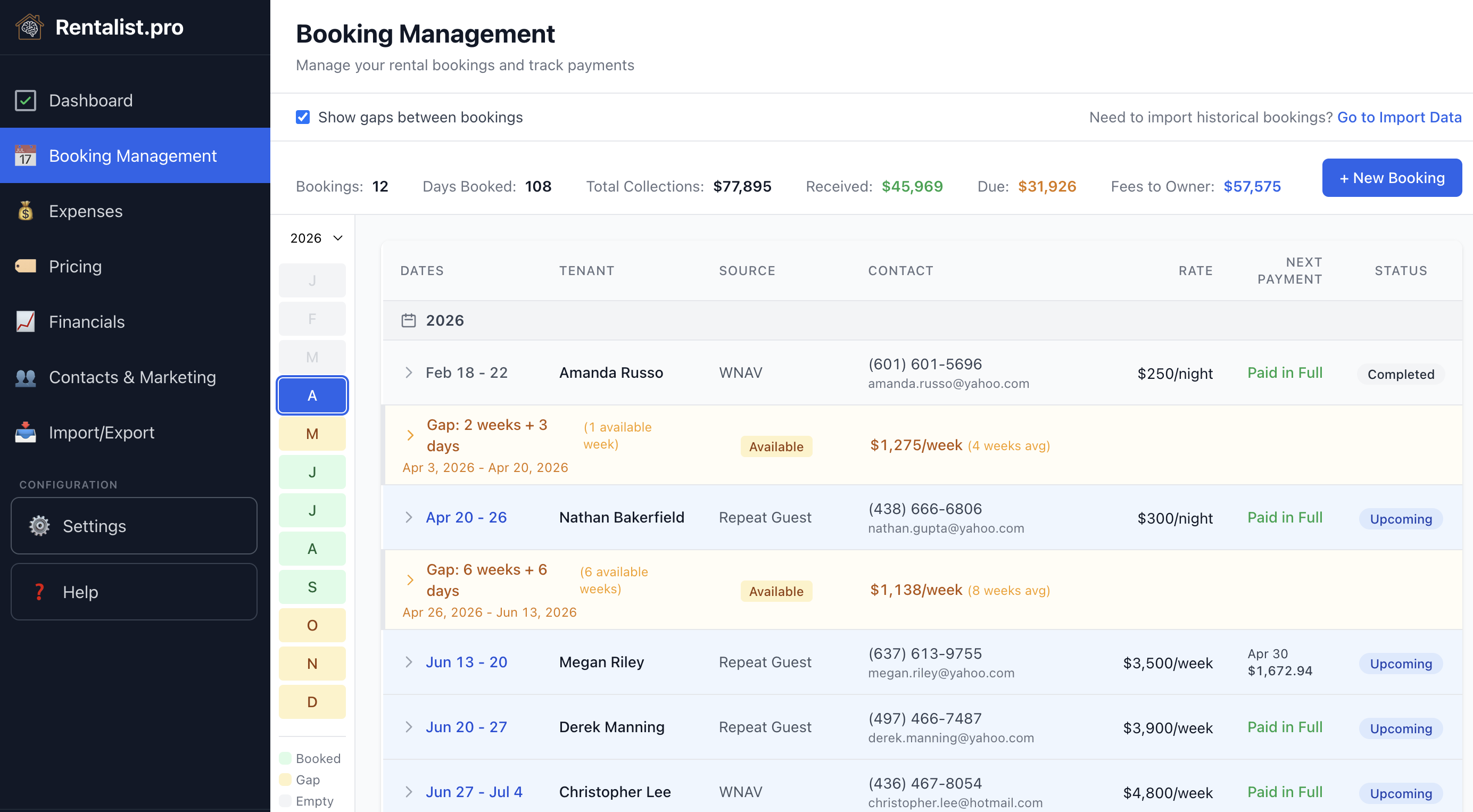
Every dollar of rental income flows through a booking. This is where you record reservations, track payments, and manage the financial lifecycle from deposit to security deposit return. A booking in this app feeds your revenue totals, guest database, payment tracking, and tax reports.
Start with Booking Source — this is at the top because it determines how the rest of the form behaves. The source options come from the platforms you've enabled in Settings.
- Platform sources (Airbnb, Vrbo, Booking.com) — The form simplifies dramatically. Since these platforms collect the money and (usually) remit the tax, you only need to enter the estimated payout amount. No fee breakdowns, no payment schedules to set up.
- Direct sources (Repeat Guest, Direct, etc.) — You'll see the full pricing form because you're handling payments and taxes yourself.
- Repeat Guest — The Last Name field is always a search box, so you don't have to pick this first: search and select any past guest there and their contact info auto-fills — and if they've stayed with you before, Booking Source auto-fills to "Repeat Guest" too.
- Owner Occupied — For a stay this year or later, occupancy tax is worked out on any rent and fees you record on it, the same as on any other stay; with no rent or fees there is no tax. The nights still count as occupied nights, because the house was in use, but the stay is kept out of the repeat-guest rate and Fill Rate so your own weeks don't read as paying guests. Any rent and fees you record on it still count as revenue. Use this for your personal stays.
Arrival and Departure — The app calculates duration automatically. It displays as weeks for 7+ day stays, or days/nights for shorter stays.
Date Booked — This field often confuses new users. It's asking when the booking was confirmed, not when the guest arrives. Why does this matter? Analytics uses it to calculate "lead time" — how far in advance your bookings come in. If you're getting bookings 6 months out, that's different from getting them 2 weeks out. This helps you understand your booking patterns and when to adjust pricing for unsold dates. On a new booking it starts blank. For historical imports, enter the approximate date if you know it, or leave it blank.
For a platform booking, you just enter the payout. For direct bookings, here's how pricing works:
- Rate Unit — Choose how you quoted the rental: per night, per week, or per month. If you change this, the rate auto-converts (e.g., $3,500/week becomes $500/night).
- Rate vs. Rent — Rate is what you charge per period. Rent is the total (rate x duration). Both fields are editable — sometimes you negotiate a total that doesn't match the math exactly, and that's fine.
- Apply Nightly Weighting — This appears for stays that aren't exact week multiples. When checked, extra days are priced using your day-of-week weights from Settings. For example, a Friday-Saturday stay costs more than a Monday-Tuesday stay of the same length. Most owners leave this unchecked for simplicity.
- Fees — Your configured fees (cleaning, pet, etc.) appear as checkboxes. They're unchecked by default — check the ones that apply to this booking. The amounts come from your Settings but can be adjusted per booking.
- Occupancy Tax — Worked out automatically from the tax rate in Settings. On a current or future booking the box can't be edited: if the figure needs to change, change the rent and the tax follows. A booking from a past year works differently — see "Past Years, Old Tax Rates, and Locked Data" below.
- Security Deposit — Your default from Settings, but adjustable per booking. Note: the deposit is tracked separately from "Total to Book" because it's refundable.
- Total to Book — Rent + Fees + Tax. This is the non-refundable revenue from the booking. The security deposit is separate.
Once you have a total and arrival date, the app auto-generates a payment schedule based on your settings. Here's what to know:
- Auto-generation — Payments appear automatically using your default schedule from Settings. Number of payments, percentages, and timing all come from there.
- Fully editable — The auto-generated schedule is just a starting point. Change amounts, dates, or types as needed. Add extra payments. Delete payments.
- Balance adjustment — When you change one payment amount, the final payment auto-adjusts to keep the total correct. This avoids rounding errors.
- Last-minute bookings — If you've configured a last-minute threshold in Settings and this booking falls within it, you'll see a single payment for the full amount.
- Payment types — "On Signing" means due when the rental agreement is signed. "Balance" and "Balance + Deposit" indicate final payments. "Platform Payout" is the payment Rentalist sets up for a platform booking.
For Airbnb, Vrbo, Booking.com, or custom platforms that collect payments:
- You only enter the estimated payout — no fee breakdowns needed
- The payout is dated by that platform's payout timing in Settings → Platforms — for example, 1 day after check-in — and you can change the date on the booking itself
- If the platform remits all of the occupancy tax, the booking is excluded from Occupancy Tax Payments
- If a platform remits none of the tax, or only part of it, you'll see the full pricing form so the tax — or your share of it — can be calculated
In the booking list, each booking has an expandable row showing:
- Payment checkboxes — Mark payments as received
- Key Code — Record the lockbox/entry code for this guest
- Security Withheld — If you withheld any deposit amount, record it with a reason
- Security Returned — Auto-calculates (deposit minus withheld)
- Review tracking — Mark if you requested/received a review
- The inquiry it came from — See which inquiry produced this booking, or link one yourself
Knowing which inquiry became which booking is what turns a conversion rate into a real number instead of a guess. Rentalist connects the two for you: save a booking and the inquiry behind it is matched and marked Converted automatically.
When more than one inquiry could be the right one, it asks rather than guessing — a quiet note on the booking, answered in a click. And you can always link one yourself, which is handy for the platform inquiries that never come with an email address.
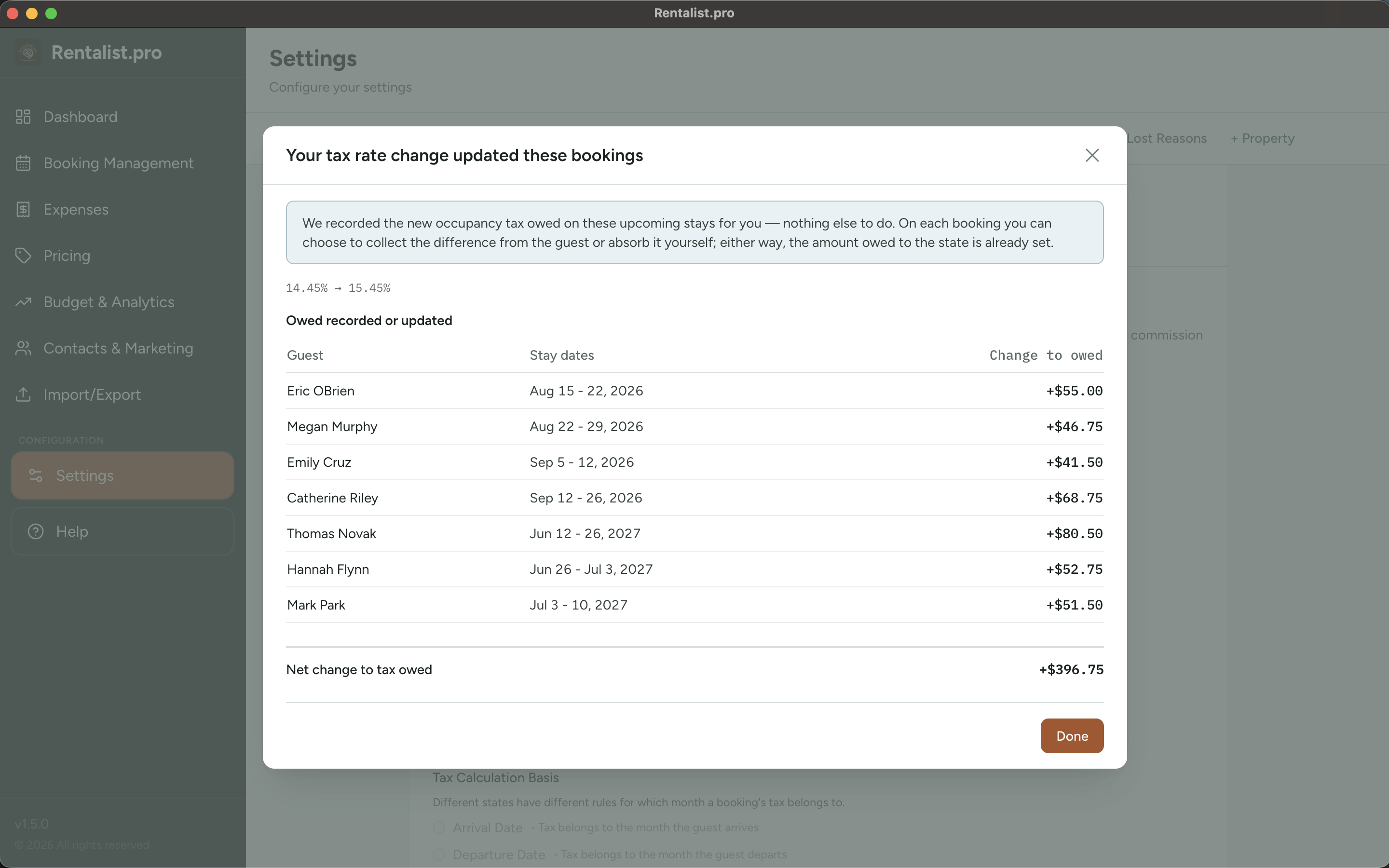
Your town raises the occupancy tax. Every booking already on your calendar was quoted at the old rate — but you'll owe the state the new one. Sorting out which stays are affected, and by how much, is exactly the kind of arithmetic that goes wrong quietly.
Rentalist settles it the moment you save the new rate. No "apply" button to remember, no list to work through — it shows you a summary of what it already did, including the fiddly cases like a stay that runs across New Year's.
The only thing left is a choice, not a chore: collect the difference from the guest or absorb it yourself. Either way what you owe the state is the same, and the reminder disappears as soon as you decide.
A stay from 2021 was taxed at 2021's rate, and no amount of convenience justifies quietly restating it at today's. So Rentalist leaves old bookings alone: a past-year stay keeps the tax it was actually charged. Tell the app what an earlier year's rate was and it will do that year's math for you again — but it will never invent it.
Years you've already filed are locked against stray clicks, too. When you genuinely need to fix something, one click unlocks that year while you're working on it, and it locks itself again when you leave.
Don't delete cancelled bookings — use the cancellation workflow. You'll record how much you retained per your cancellation policy. Money you keep counts as rental income. The app handles the accounting correctly, and you keep a record of what happened.
Whether money you keep from a cancellation is subject to occupancy tax is answered for each office you send tax to, in its own form on Settings > Fees & Taxes. It should be set to reflect the law where your property is. Check your state's rules and verify with your accountant. Any refund appears in the booking's payment list as a negative payment, and reinstating a cancelled booking restores its payments.
At the top of the bookings list, a stats bar summarizes key metrics for the selected year:
- Bookings — Number of active (non-cancelled) stays with at least one night in the selected year. A stay that runs over New Year counts in both years.
- Days Booked — Total guest-nights for the selected year
- Total Collections — What you will actually collect on the year's stays: rent + fees + tax + security deposit, less an Airbnb or Vrbo commission (that money never reaches you) and less any refund you have recorded on a direct stay.
- Booked Revenue — Rent + fees, less any commission a platform kept from your payout where Rentalist knows it, plus money kept from cancelled stays, any security deposit you kept and any damage or incident payment you received, with no tax. This is the figure the Tax Summary starts from — verify with your accountant what you report.
- Received — Payments already marked as received
- Due — What hasn't arrived yet, worked out one booking at a time: what that booking is expected to bring in, minus the payments already marked Received.
Received + Due adds up to Total Collections, with one exception: a booking that has been overpaid counts as nothing owed, so its extra is never used to cancel out another booking's balance. Stats count the stays with at least one night in the selected year — switch years using the dropdown to see different periods.
Q: Why can't I edit the tax amount?
A: On a current or future booking the tax is worked out from the rent, so the box is locked — change the rent and the tax follows. On a booking from a past year the box can open up, because today's rate may not be the rate that applied then.
Q: The payment schedule regenerated and lost my changes!
A: This happens when the total changes significantly. Payments that are already marked "Received" are preserved — only scheduled payments regenerate. Mark payments received as soon as you get them to protect those records.
Q: What's the "Date Booked" field for?
A: It tracks when the booking was confirmed, not when the guest arrives. Analytics uses this to calculate lead time — helping you understand how far in advance guests book. If you manage multiple properties, see the Managing Multiple Properties section for details on property assignment and how bookings work across properties.