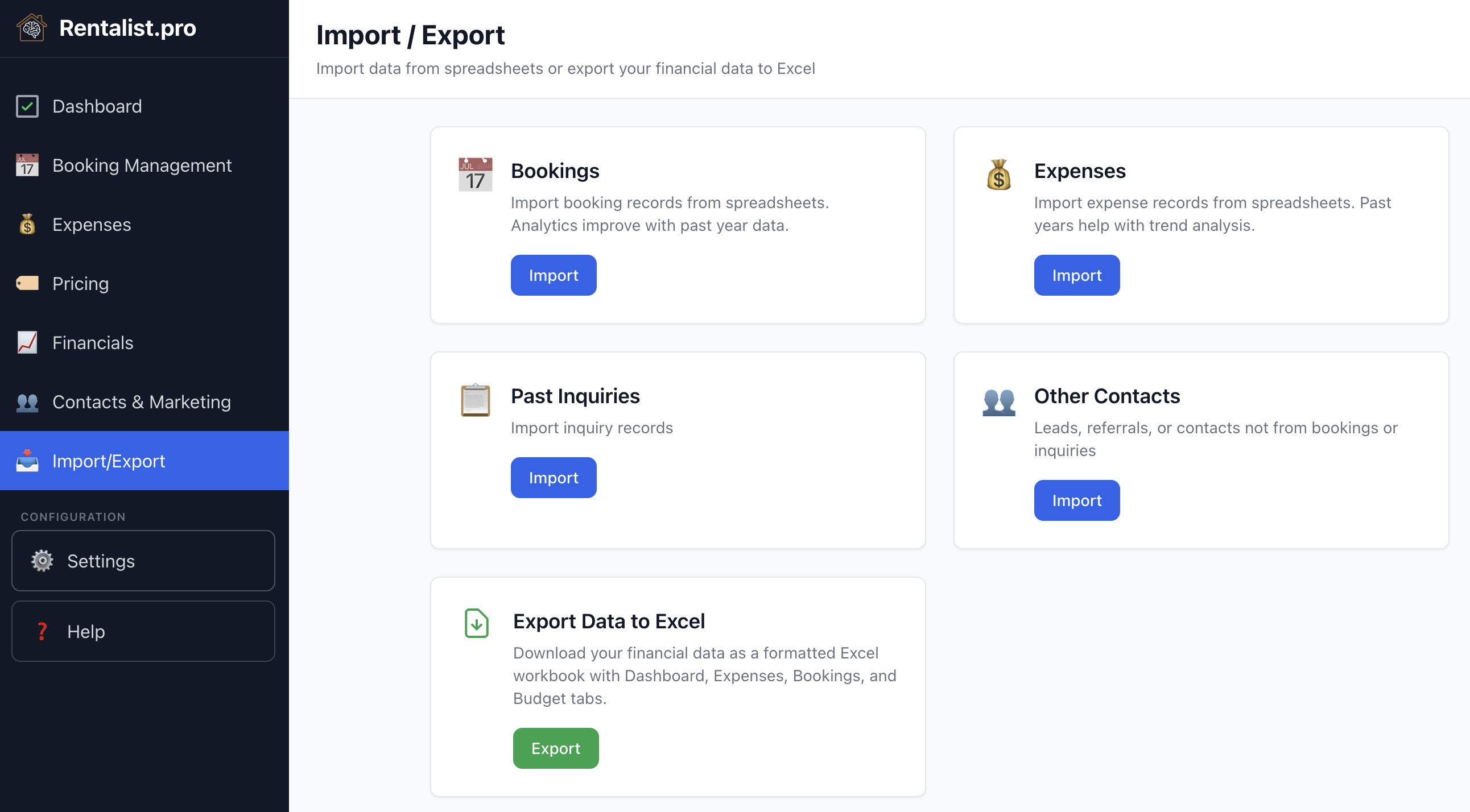
If you have past booking and expense data in spreadsheets, importing it unlocks the most powerful parts of the app. With historical data, you get:
- Year-over-year revenue and expense comparison
- Multi-year occupancy trends and booking pace analysis
- Repeat guest identification and guest marketing lists
- Complete tax history in one place
A single season shows what happened. Three years shows what's trending. Even approximate historical data makes Analytics dramatically more useful.
The import wizard handles three data types (click Import/Export in the left sidebar):
- Bookings — Reservation records with dates, guest info, rates, and fees
- Expenses — Costs with dates, amounts, vendors, and categories
- Past Inquiries — People who asked about your property but didn't necessarily book
Supported: .xlsx (Excel) and .csv files. .xls files are not supported. If you have an older .xls file, open it in Excel and save it as .xlsx first. The file picker will let you select .xls files, but the import will not be able to read them.
Minimally Useful Spreadsheet
The bare minimum the import needs to work:
- For bookings: Arrival date, departure date, and guest last name
- For expenses: Date and amount
- For inquiries: A name (first, last, or full)
With minimal data, the import will still create records — but some fields will be blank and some bookings may be flagged as "needs review" (for example, bookings with no rent amount).
Optimal Spreadsheet
A bookings spreadsheet with these columns gives the app everything it needs: arrival date, departure date, first name, last name, email, phone, rate or rent amount, cleaning fee (and other fees if applicable), booking source (Airbnb, Vrbo, Direct, etc.).
For expenses, the optimal spreadsheet includes: date, amount, vendor/paid to, category, and description.
The import wizard is designed to work with your spreadsheet format. You don't need to restructure your data to match a template. Here's what the app does for you:
- Finds the header row — It doesn't have to be in row 1. The import scans your spreadsheet and detects where the headers are.
- Identifies columns — Analyzes your column headers and the data in each column to figure out what each one contains (dates, names, amounts, etc.).
- Detects date formats — Whether your dates are MM/DD/YYYY, DD-Mon-YY, or stored as Excel date numbers, the import handles it.
- Recognizes fee columns — Column headers like "Cleaning Fee" or "Pet Fee" are automatically mapped to your configured fees from Settings.
- Suggests expense categories — For expense imports, a category name that matches one of yours is filed under it, and any other name gets a suggested category for you to confirm before anything is imported.
- Assesses quality — Before you import, the app tells you how well-organized your spreadsheet is and what, if anything, might cause problems.
- Detects cross-type data — If you're importing bookings and the app notices one of your tabs looks like expenses (or vice versa), it will let you know.
- Choose Import Type — Click Import/Export in the left sidebar. Select what you're importing: Bookings, Expenses, or Past Inquiries. Then select which property the data belongs to.
- Select Your File — Browse for your .xlsx or .csv file. The app creates an automatic backup before making any changes, so your existing data is safe.
- Quality Assessment — The app evaluates your spreadsheet and rates it:
- Good — Clean data, clear columns. Ready to import.
- Usable — Some minor issues but importable. You may want to review mappings.
- Poor — Significant issues. The import may work but will need review. Consider cleaning up the spreadsheet first.
- Unusable — The file can't be imported as-is. The app will tell you what needs to be fixed.
- Column Mapping — The app shows you how it mapped your columns to data fields. Review each mapping and adjust if anything is wrong. Once a field is mapped to a column, it's removed from other dropdowns to prevent duplicates.
- Review and Import — Preview the data that will be imported. If there are duplicates (matched by email, then phone, then name), the app shows conflicts and lets you choose which data to keep. Then click Import.
If your Excel file has multiple tabs (sheets), the import handles each one:
- Each tab is analyzed separately with its own column mappings
- You can assign different tabs to different properties
- Tabs with too little data (fewer than 3 rows) are skipped automatically
- If a tab contains a different data type (e.g., expenses in a bookings import), the app will flag it
- You can skip any tab you don't want to import
When importing expenses, each expense needs a category so it maps to the right place on your taxes. The import handles this in two ways:
- If your spreadsheet has a category column — A name that matches one of your categories, ignoring capitals (e.g., "cleaning" is filed under Cleaning), is filed under it. Any other name is listed on the review step under "Check these categories," with the closest category Rentalist found, if any. Approve it, pick another, decide later, or add the name as a new category with the tax deduction category you choose.
- If categories are column headers — Some spreadsheets use the category name as a column header with amounts in rows (e.g., a "Cleaning" column and a "Utilities" column). The import recognizes this pattern and creates properly categorized expense records.
Either way, review the category assignments after import. Getting categories right matters for accurate tax reporting.
- Fee handling: If your spreadsheet has "Yes/No" for fees instead of amounts, the import uses your configured fee amounts from Settings.
- Custom fees: If a column header matches a fee not configured in Settings, you can map it as a "Custom Fee" and the column header becomes the fee name.
- One amount per stay: If your spreadsheet has a single amount for each stay and no separate tax, deposit or fee columns, the import asks two questions — does that amount include the security deposit, and does it include occupancy tax? Say yes and Rentalist takes that amount out for you. Any fees stay inside the rent figure; you can add them later by editing the booking. A spreadsheet that already has its own tax, deposit and fee columns isn't asked.
- Missing rent: Bookings that don't have a rent amount are still imported but flagged as "needs review" so you can fill in the missing info later.
- Duplicate protection: Re-importing a spreadsheet won't create doubles — a row that exactly matches an existing booking's last name, arrival, and departure is skipped and counted as a duplicate.
If the app says your spreadsheet needs work, here are the most common fixes:
- Remove merged cells — Merged cells confuse column detection. Unmerge everything.
- Make sure dates are formatted as dates — Sometimes dates are stored as text. In Excel, select the date column, right-click, Format Cells, and choose a date format.
- Remove blank rows in the middle of your data.
- Remove summary/totals rows at the bottom — the import may try to import them as records.
- Save as .xlsx — If your file is .xls or another format, save it as .xlsx.
- Some records may have "needs review" flags — check the bookings list for any that need attention (e.g., missing rent amounts).
- Review category mappings for imported expenses to make sure everything landed in the right tax deduction category.
- If you created a new property during import, the app will remind you to finish setting up that property's configuration in Settings.
- Contacts from imported bookings are automatically added to your Guest Directory.
- Dates not importing correctly: Sometimes Excel stores dates as text. Reformat the column as actual dates in Excel, then re-export.
- Duplicates created: The import matches by email first, then phone, then name. Inconsistent emails across years can create duplicates. Merge them in Guest Directory after import.
- Wrong year detected: Each record is filed by the date on its own row. Correct any date on the preview screen before importing.