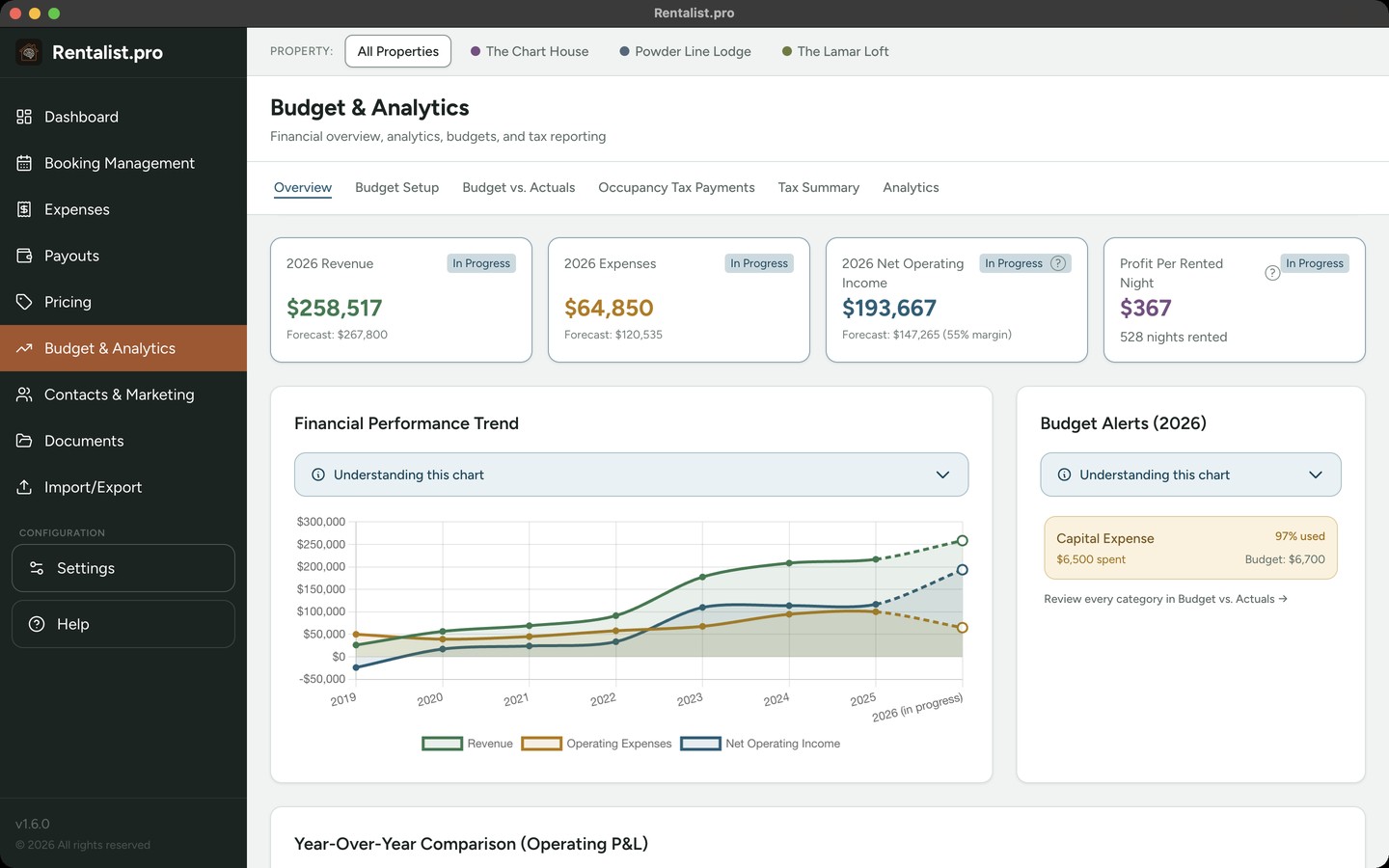
At the start of each year (or mid-year if you're just starting), set up your budget. This creates a benchmark to measure against throughout the year.
Where to Start From
- Start Fresh: Begin with empty budget fields.
- Last year's Actuals (shown as, for example, "2025's Actuals"): Pre-fill with what you actually spent last year. A good starting point if you expect similar spending.
- Last year's Budget: Copy last year's budget. Good if last year's plan was solid but actuals varied. A line you marked Closed on Budget vs. Actuals last year starts from what you spent on it that year, including bills already scheduled.
These come from a single "Initialize from..." dropdown, and the last two only appear once last year has data. Whichever you choose, you can still adjust every number. It's just a starting point.
Revenue Forecast
For each month, enter Weeks Rented (how many weeks you expect to rent, whole weeks only) and Avg Weekly Rate (your expected average rate for that month). The "Load Rates from Pricing" button pulls rates from your Pricing Calendar if you've entered them there.
Expense Budgets
Categories are grouped by tax deduction category (Cleaning & Maintenance, Utilities, etc.). Set an annual budget for each category you expect to spend on. Categories you've excluded from budgets in Settings won't appear here.
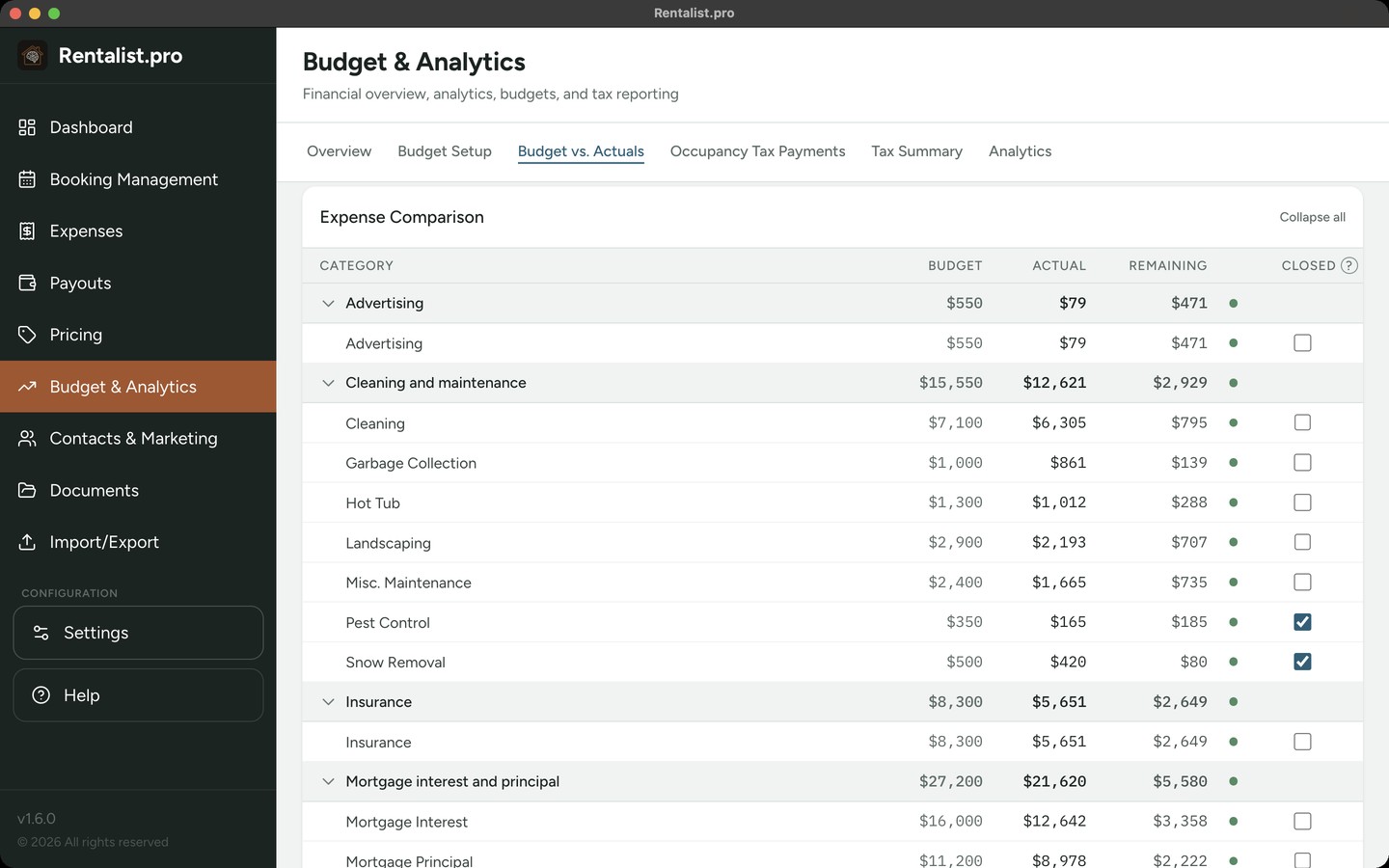
This is your real-time financial dashboard. Check it monthly to stay on track.
Revenue Section
- Budgeted: Your forecast from Budget Setup
- Booked: Actual revenue from confirmed bookings (rent + fees less any commission a platform kept from your payout where Rentalist knows it, not tax)
- Variance: The difference (green if ahead, red if behind)
Note: Revenue uses "booked" not "received", it counts each booking in the month it ends, which aligns with when the rental income is earned. A stay that crosses New Year is split across the months by its nights, so each year counts only its own nights.
Expense Section
- Budgeted: Your annual budget for each category
- Actual: What you've actually spent
- Remaining: Budget minus actual. Once you're over, Remaining shows $0 and the row says Over by the amount.
- Closed: Check a line when you expect no more spending on it for the rest of the year. What is left of its budget, less bills already scheduled on the line and renewals on the Documents screen with an estimated cost, then counts as money you keep: in the Expected column under Net Results, on the Analytics Overview forecast and on the Cash Flow Forecast. Bills you add later still count. Uncheck it any time. On All Properties, one check closes or reopens the line at every property that budgets it.
Each row carries a status bar: green while you've spent under 90% of the budget, amber from 90% up, red once you're over. With "All Properties" selected, Budget vs. Actuals adds the houses together with a row you can expand for each.
This tab appears once you've set up occupancy tax you file yourself in Settings → Fees & Taxes.
What It Shows
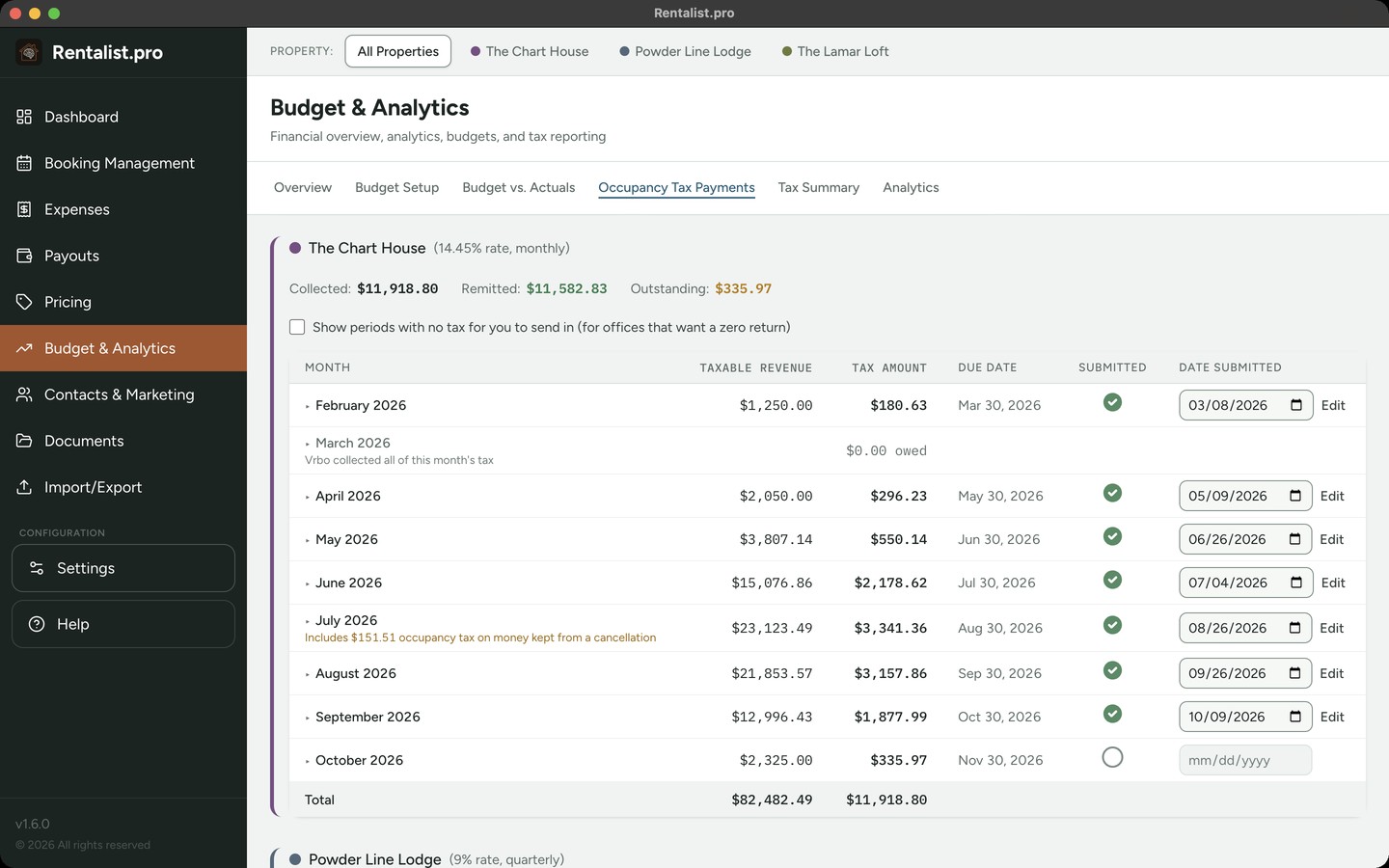
Tax periods based on each payee's filing schedule (monthly, quarterly, or annually). For each period: bookings that fall in that period and their tax amounts, total tax collected vs. tax remitted (paid), outstanding balance, and upcoming due dates. Any Tax Difference amounts owed are shown too, and the line names which kind it is: a rate change, or a stay that came in from a file with no occupancy tax on it. When you have more than one payee, you get one section per payee, the office you send a return to, each with its own periods, due dates and Submitted ticks. Beside each period is a small caret that opens the figures your return asks for (the receipts you file on, anything exempt, and the tax), with a Copy button on each. A tick above each payee's periods, "Show periods with no tax for you to send in," is for offices that want a zero return; it is off unless you turn it on.
Key Concepts
- Tax Calculation Basis: Which period a stay's tax counts in: by arrival, by departure, spread across the stay, or when the money arrives. You choose it for each payee, in that payee's form on Settings → Fees & Taxes. Choose it before you mark a payment to that payee submitted; once you have, it locks for the year for that payee.
- Platform stays: A stay on Airbnb, Vrbo, Booking.com or a custom platform is left out of these totals when that platform is ticked for every one of your occupancy tax charges on Settings → Platforms. If it is ticked for only some of them, the stay stays in, carrying the charges you still file yourself. Verify with your accountant which share is yours to file.
- Marking Submitted: Tick the "Submitted" box when you send in each period's tax, and enter the date you sent it for your records. A submitted period keeps the figures you filed: nothing recalculates it while the tick is on. If your records change afterward, a note under the period says what they come to now and how much more or less that is than you filed. To recalculate the period from your records, untick it. If your records have changed, Rentalist asks you to confirm first, because the figures you filed, and the date you sent them, are not kept. Edit beside a submitted period records what you actually paid, when it differs from the calculated figure, along with the date paid, any penalty or interest, notes, and the filed return or receipt as an attachment. A penalty or interest payment is shown on its own line and is never counted as occupancy tax.
- A payment dated in a period you already submitted: For a payee that counts tax when the money arrives, recording a received payment dated inside a submitted period brings up a warning as you save. The save goes through as usual; the warning says you may need to make an extra payment to that office, so verify with your accountant.
- A received payment with no received date: On tax you send in yourself, for a payee that counts tax when the money arrives, a payment ticked Received but given no received date is counted in the month it was due. The screen names those stays under "Check the received date." Open the stay on Booking Management and enter the day the money arrived.
- Rate-change differences are included: If you've changed your tax rate, the extra owed on affected stays is already folded into what each period owes the state.
Past years are history, not homework
A closed year shows what you actually collected, never recalculated at today's rate. It stays accurate and readable, it just isn't dressed up in red as though you could still act on it, and a year from before you started using Rentalist is never treated as unpaid.
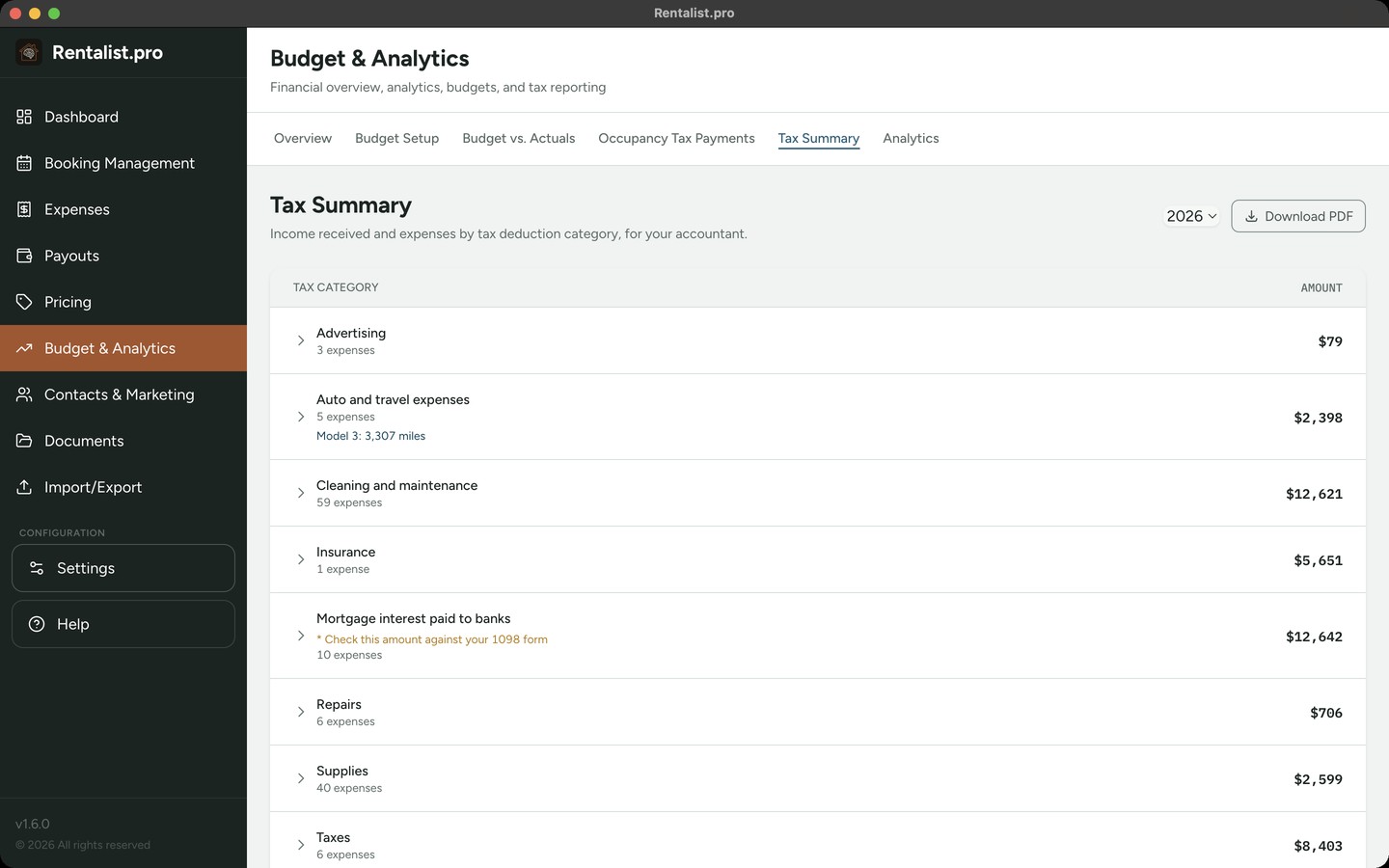
A year-end summary of your rental income and expenses. It shows rental days, personal use days, revenue totals, and your expenses sorted into tax deduction categories, the categories whoever prepares your income taxes needs, whether you file personally, as an LLC, or as a corporation. Each of those files on a different form, so Rentalist supplies the categories and leaves the form to your preparer. Use this as a starting point for tax preparation, but always verify with your accountant.
When money counts as income
Rentalist counts rental money in the year it arrived. If a guest pays in December for a stay the following July, that payment belongs to December's year. This is how most individual owners keep their books, and it is worth a conversation with whoever prepares your return. Airbnb, Booking.com and Vrbo money is counted on the date the platform paid you out, the same date their tax form reports. That is the basis Rentalist uses, and some preparers count it from the day the guest paid instead; if yours does, tell them which basis these figures use. A refund counts in the year you paid it back and is shown on its own line. A refundable security deposit isn't income when you take it; if you keep part of it, that part is income in the year you keep it. The Dashboard and the analytics screens count money in the year of the stay instead, because that is the useful way to judge how a property performed.
Where a booking has money recorded against it that its own figures cannot explain, it is named in red on this screen, on the printed tax summary and in the Excel workbook, with the guest, the dates, the money counted and the reason. Open each one under Booking Management and check it against the payments recorded on it. The warning clears itself once the two agree. In All Properties view the income figure is also broken out one block per property, beneath the combined figure.
Personal use and how costs are split
At the top of the Tax Summary, Rentalist counts the nights you used the property yourself against the nights it was rented at your normal rate. It does the arithmetic; it doesn't decide what you can claim. If your home is rented for fewer than 15 days in a year, the rent from those days is generally left out of your income for tax purposes. Rentalist doesn't work that out or change any figure for it, so ask your accountant.
- The line that matters. The federal tax rules set a limit: the greater of 14 nights or 10% of the nights rented at your normal rate. Go past it and the rules change for the whole year. Watching it is all Rentalist does; how the limit applies to your own year is a question for your accountant. The 10% half of the limit moves as your season fills, so the number on screen is always the limit as your calendar stands right now.
- Picking the right stay source. Close Family means your spouse, child, grandchild, parent, grandparent, brother or sister. Everyone else who is family goes under Extended Family, and people who aren't family go under Friends. Owner Occupied is for when you or your household used the place yourselves. A Close Family stay counts as your own use even if they paid full price. Extended Family and Friends stays get one question: did they pay your normal rate for those dates? Paid your normal rate counts as rented; a discount counts as your own use.
- An unanswered stay counts as rented. When stays are still unanswered, the screen tells you what your personal nights would be if all of them turned out to be close family, and whether that would put you over. Answer them before you hand anything to your accountant.
- Repair days. Days you spent working substantially full time repairing and maintaining (not improving) the property are not counted as your own use. If you never recorded your own stays, open Stays counted this year and use Add nights you used it, and Add repair days for work days.
- How shared costs get split. Rentalist works out what share of the nights used were rented at your normal rate and states it. It does not reduce any of your expense figures by it; your accountant applies it. Mortgage interest and property tax have two accepted methods that give different answers. Rentalist shows you both and picks neither; choose one, or leave "Leave it for my accountant" selected. You can also use "Set the split yourself" to enter the rental share you want stated for shared costs.
- The Dashboard nudge. You'll get an amber heads-up as your own nights approach the limit, and a red one if you pass it.
A platform that sends you a 1099-K reports the amount before it took its commission, so that form can show more than your records. The Tax Summary carries a note naming the platforms this applies to. Which costs are deductible, and how, is a question for your accountant.
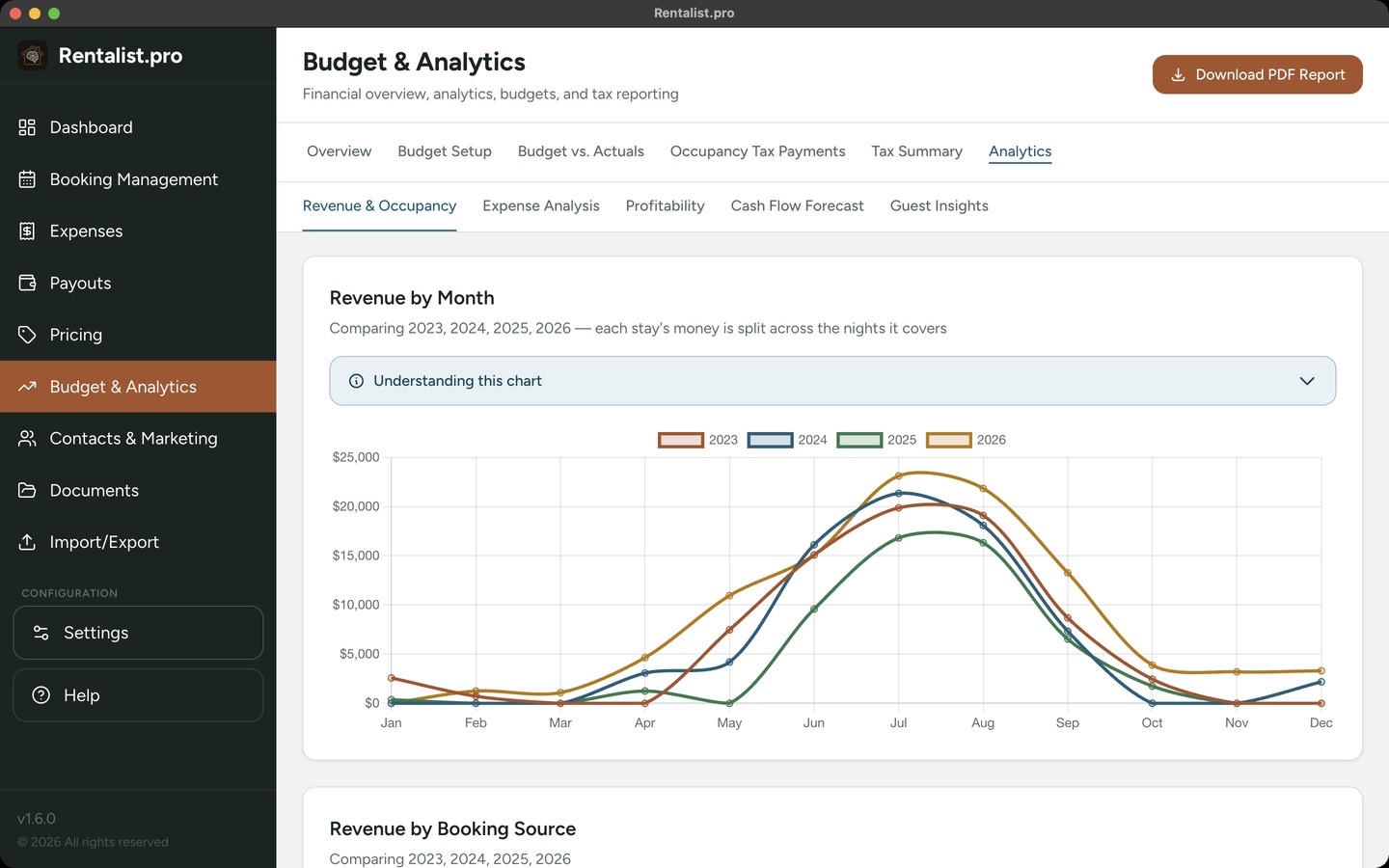
Several years of your own history, asked the questions owners actually ask. It's most useful once you have 2+ years of data, so importing your past years first (see Importing Your Data) gives it something to work with.
- Cash Flow Forecast: the next 12 months of money in and money out, and the balance they leave you with. See the Cash Flow Forecast section below.
- Revenue & Occupancy: revenue trends, where bookings come from, how far ahead guests book, how long they stay.
- Expense Analysis: what a night and a booking really cost you, and where the money goes.
- Profitability: net operating income over time, side by side across years.
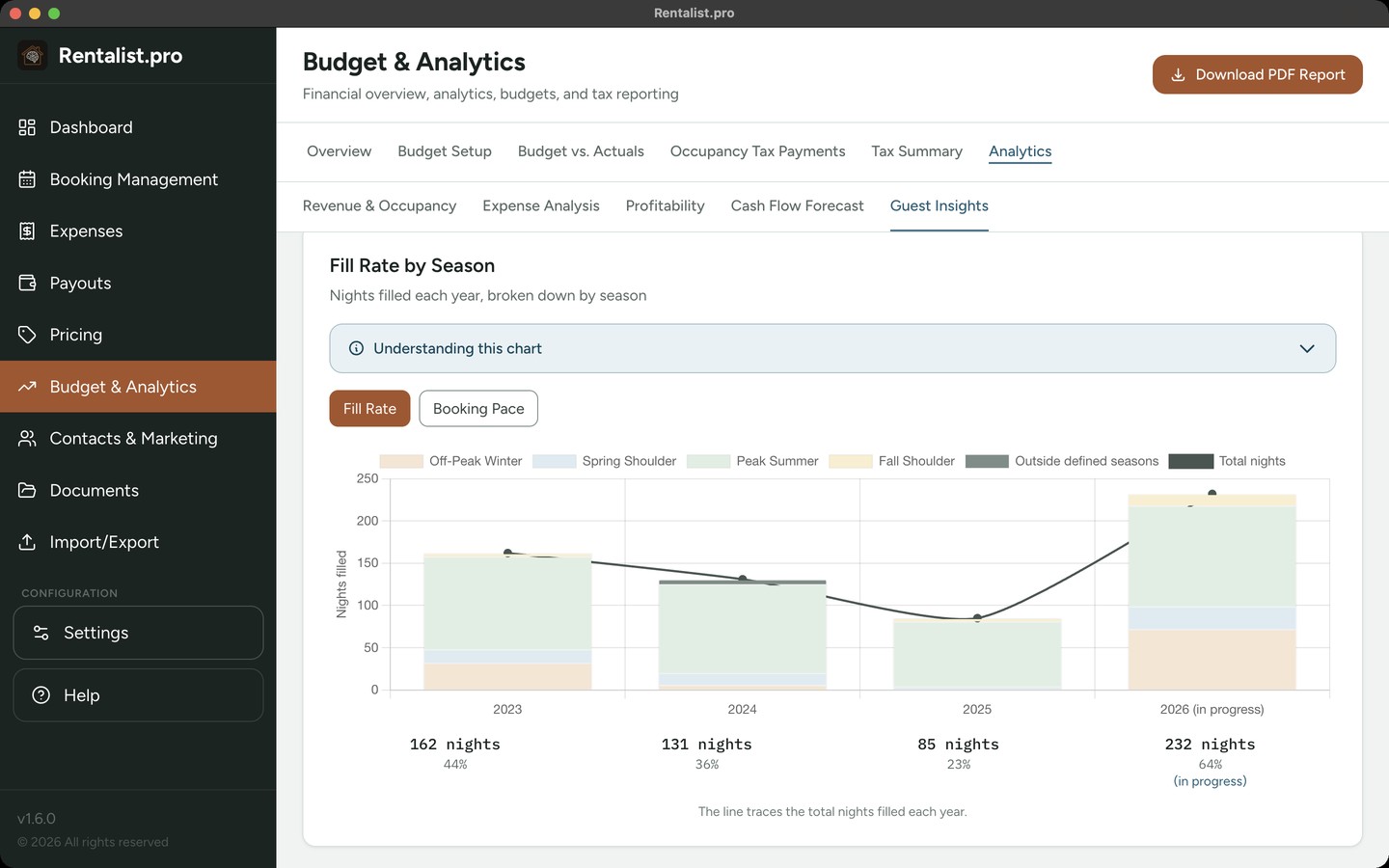
- Guest Insights: Fill Rate by Season (how full each part of your year got, in your seasons rather than generic quarters), booking pace against the prior year, repeat guest rate, past guests who haven't rebooked yet, inquiry conversion, open weeks, and the top reasons you lose inquiries.
One "Select Years to Compare" card at the top applies to Overview, Profitability and Guest Insights, and it offers every year that has bookings, expenses, or inquiries, all the way back to your earliest records.
Fixed, variable and utilities. The Cost Analysis card sorts your spending into three buckets. Fixed costs arrive whether or not anyone stays: insurance, property tax, mortgage interest, legal and professional fees, HOA or condo fees, permits and licenses, alarm monitoring, pest control, software subscriptions, snow removal. Variable costs rise and fall with your bookings: cleaning, supplies, repairs, landscaping, advertising, and anything else not named here. Utilities get a bucket of their own. A category you add yourself is counted by the tax category you file it under. Capital improvements and the principal part of a mortgage payment are not counted in any figure on this card, because neither is a cost of hosting a guest; the card names the amounts it set aside.
A rental season pays in a few lumps and spends every month. This tab, found under Analytics, shows the next 12 months, starting with the month you're in, so you can see where the gap between them falls before you get there.
What it counts
You choose, in the settings above the chart. Only what's on the books counts money that already has a date on it: guest payments that are scheduled but not yet received, occupancy tax on its remittance due date, recurring bills, repeating services, and any permit or policy renewal you've given both a date and an estimated cost under Permits & renewals on the Documents screen (marked "estimated," because that cost is your estimate). A booked stay with no payment dates is counted on the day its platform is expected to pay you, or on its arrival day when the guest pays you directly. Books plus my budget adds, month by month, the revenue you budgeted that your booked stays don't cover yet, and the bills your expense budget still expects. Books plus last year's pattern adds what came in and went out in the same month last year, beyond what's already on the books, leaving out capital improvements, which don't repeat. A line you marked Closed on Budget vs. Actuals adds no more estimated spending for the rest of that year. The month you're in is never estimated.
Anything the setting you chose adds is the shaded top of a bar and sits in its own column, so you can always tell it from money with a date.
Reading the screen
Watch the line rather than the bars. The bars are each month on its own, money in beside money out; hover over one to see what it's made of. The line is where you stand as the months add up. A red month ends below the amount in Warn me below; a yellow month spends more than it brings in. If a month is both, it's red, but both badges are shown. The Tightest month card names the first red month and lists every month that spends more than it brings in.
- Cash on hand: Type what's in the account and the line becomes a real balance. Leave it blank and the line shows how far ahead or behind you'd be compared with today. Once the number is more than 30 days old, the box offers to update it.
- Warn me below: Set a cushion and any month whose balance drops under it is flagged in red. Leave the box blank if you'd rather not be warned at all. Setting it to $0 warns you about any month that ends below zero.
- Security deposits: A refundable deposit is money you're holding, not money you've earned, so it never counts as money in. It appears as a note under the month it arrives.
- Mortgage principal: Counted, and the checkbox in the settings above the chart is ticked to start with. Paying down a loan builds equity rather than spending money, but it does leave your bank account, and this forecast is about your bank account. Untick it and this forecast leaves it out; nothing else in the app changes.
- Mortgage escrow: Beside your mortgage in Settings → Fixed Costs you tick what your escrow pays (property tax, insurance, or both) and enter the yearly amount for each from your escrow statement. For a ticked bill the forecast estimates only the part your escrow doesn't pay.
- One property at a time: Cash flow is a bank-account question, and combining properties would answer nobody's. Pick a property in the bar at the top.
- Quiet months are normal: A closed-season month with nothing scheduled shows zeros. It means nothing is on the calendar for that month yet, not that something is missing.
- Something overdue: A guest payment or a tax period that's already past due and still unpaid lands in the first month, marked with the date it was due, because that's when you'd actually deal with it.
- Download it: The forecast comes out as a spreadsheet: one row per month with money in, money out, the balance and a Notes column carrying the same warnings you see on screen, plus the setting you chose and any estimate, each on its own row.
Every owner knows the feeling of looking at the calendar in May and wondering whether that empty second week of August is a problem yet. Generic advice, "drop your price 60 days out", isn't an answer, because your weeks don't behave the same way as each other.
Rentalist answers it from your own history: it flags an open week when it's closer to arrival than that week has normally booked in past years, and stays quiet about the weeks that always go last-minute. Holidays are matched by where they fall, so "the week before Labor Day" is compared with the right week each year.
It's a prompt to look at a price, not an instruction. It uses your own new-guest bookings from the last 3 years. Two kinds of stay are left out of that expectation, because they don't book the way the open market does: a returning guest re-booking their usual week, and a stay you've marked Close Family. Only weeks inside your Active Rental Season are watched, plus any single week you've priced noticeably above its neighbors. Weeks with no price set aren't flagged. Easter is available as a holiday anchor for this (Settings → Seasons, in the Anchors section), off by default. You can turn the whole feature on or off per property with Open Week Alerts in Settings → Property.
The Overview tab has a toggle that switches between two ways of looking at your finances. It changes the numbers on that tab and on the Profitability tab under Analytics; the Dashboard always shows operating figures. Both views answer a different question about your property.
Operating P&L (Net Operating Income)
This view answers: "How is the rental performing as a business?"
Revenue: Rent plus fees from non-cancelled bookings, less any commission a platform kept from your payout where Rentalist knows it, plus security deposits you kept and damage or incident payments. Does not include occupancy tax (pass-through) or security deposits you give back (refundable).
Expenses include everything EXCEPT: Mortgage principal (building equity, not an expense), Capital improvements (asset purchases depreciated over many years), Auto/travel/mileage (personal tax deduction, not property operating cost).
Why this matters: This is how real estate investors evaluate properties. It shows whether the rental makes money on its own merits, independent of how you financed the purchase and what upgrade decisions you've made.
Cash Flow (Before-Tax Cash Flow)
This view answers: "How much money do I actually have after paying everything?"
Revenue: Same as Operating P&L. Expenses: Includes all expenses: mortgage payments (both principal and interest), capital improvements, mileage, and every other category. Nothing is left out.
Why this matters: This shows your actual cash position, real money in minus real money out. A property can be operationally profitable (positive Operating P&L) but cash-flow negative if the mortgage payment is large.
Both numbers are useful: Operating P&L tells you if the investment is sound, Cash Flow tells you what's actually happening in your bank account.
Mortgage principal in the two views
When you make a mortgage payment, part goes to interest, a real cost of borrowing, and part goes to principal, which pays down your loan and builds your equity. Principal isn't money you've lost. But you still wrote the check. So it depends on what the figure is for: anything labeled cash flow includes principal, because that money left your bank account. Anything measuring profitability, Operating P&L and the deductible totals on your tax report, excludes it. Rentalist splits the payment and reports both halves. It isn't the authority on what you can deduct, verify with your accountant.
Where to change this setting: Go to Budget & Analytics > Overview and use the Operating P&L / Cash Flow toggle. This affects the Overview tab and the Profitability tab under Analytics.