If you have past booking and expense data in spreadsheets, importing it unlocks the most powerful parts of the app. With historical data, you get:
- Year-over-year revenue and expense comparison
- Multi-year occupancy trends and booking pace analysis
- Repeat guest identification and guest marketing lists
- Complete tax history in one place
A single season shows what happened. Three years shows what's trending. Even approximate historical data makes Analytics dramatically more useful.
What imported records are for. They're your history: a record to refer back to, and the analytics built on it. What comes out is only ever as accurate as what went in. Where a file doesn't state something, such as the occupancy tax or a fee, Rentalist brings it in as zero rather than inventing a number for it. Old payouts from the years before the platforms collected occupancy tax for you will show $0 tax, and that is the correct record of them.
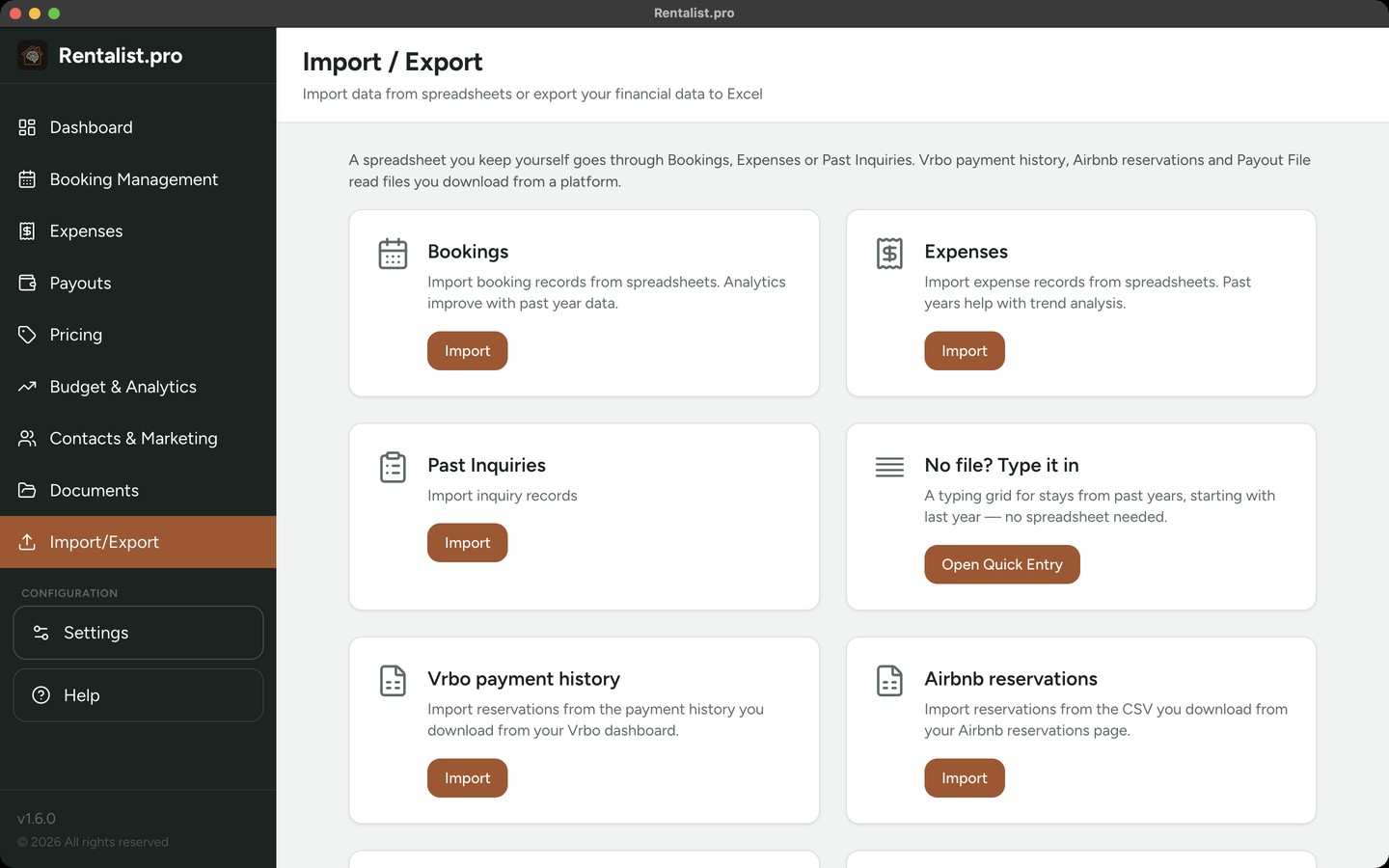
The import wizard handles three data types (click Import/Export in the left sidebar):
- Bookings: Reservation records with dates, guest info, rates, and fees
- Expenses: Costs with dates, amounts, vendors, and categories
- Past Inquiries: People who asked about your property but didn't necessarily book
Supported: .xlsx (Excel) and .csv files. .xls files are not supported. If you have an older .xls file, open it in Excel and save it as .xlsx first. The file picker will let you select .xls files, but the import will not be able to read them.
Minimally Useful Spreadsheet
The bare minimum the import needs to work:
- For bookings: Arrival date, departure date, and guest last name
- For expenses: Date and amount
- For inquiries: A name (first, last, or full)
With minimal data, the import will still create records, but some fields will be blank and some bookings may be flagged as "needs review" (for example, bookings with no rent amount).
Optimal Spreadsheet
A bookings spreadsheet with these columns gives the app everything it needs: arrival date, departure date, first name, last name, email, phone, rate or rent amount, cleaning fee (and other fees if applicable), booking source (Airbnb, Vrbo, Direct, etc.).
For expenses, the optimal spreadsheet includes: date, amount, vendor/paid to, category, and description.
The import wizard is designed to work with your spreadsheet format. You don't need to restructure your data to match a template. Here's what the app does for you:
- Finds the header row: It doesn't have to be in row 1. The import scans your spreadsheet and detects where the headers are.
- Identifies columns: Analyzes your column headers and the data in each column to figure out what each one holds: dates, names, contact details. Money columns are matched by their heading ("Rent", "Amount", "Payout") and you confirm every one in the mapping step.
- Detects date formats: Whether your dates are MM/DD/YYYY, DD-Mon-YY, or stored as Excel date numbers, the import handles it.
- Leaves money columns for you to confirm: Rentalist matches a money column by its heading ("Rent", "Amount", "Payout"), and you confirm every column assignment in the mapping step before anything is imported. It never assigns money from the shape of the numbers alone, because picking the wrong column would put a wrong number into your revenue, your budget and your tax summary at once. If it can't tell, it says so and names the number columns it couldn't place.
- Recognizes fee columns: Column headers like "Cleaning Fee" or "Pet Fee" are automatically mapped to your configured fees from Settings.
- Suggests expense categories: For expense imports, a category name that matches one of yours is filed under it, and any other name gets a suggested category for you to confirm before anything is imported.
- Assesses quality: Before you import, the app tells you how well-organized your spreadsheet is and what, if anything, might cause problems.
- Detects cross-type data: If you're importing bookings and the app notices one of your tabs looks like expenses (or vice versa), it will let you know.
- Choose Import Type: Click Import/Export in the left sidebar. Select what you're importing: Bookings, Expenses, or Past Inquiries. Then select which property the data belongs to.
- Select Your File: Browse for your .xlsx or .csv file. The app takes a backup before it changes anything, so your existing data is safe. That safety copy is taken whether or not you have automatic backups switched on, because that setting governs the schedule, not whether an import gets a snapshot. If the backup can't be taken, the import doesn't run.
- Quality Assessment: The app evaluates your spreadsheet and rates it:
- Good: Clean data, clear columns. Ready to import.
- Usable: Some minor issues but importable. You may want to review mappings.
- Poor: Significant issues. The import may work but will need review. Consider cleaning up the spreadsheet first.
- Unusable: The file can't be imported as-is. The app will tell you what needs to be fixed.
- Column Mapping: The app shows you how it mapped your columns to data fields. Review each mapping and adjust if anything is wrong. Once a field is mapped to a column, it's removed from other dropdowns to prevent duplicates.
- Review and Import: Preview the data that will be imported. If there are duplicates (matched by email, then phone, then name), the app shows conflicts and lets you choose which data to keep. Then click Import. If a bookings or expenses file covers more than one year, choose whether to import every year or only the year you picked. If the file reaches into a year you've locked that already holds records, you're asked once, in a single question naming every such year the import touches. Saying yes allows exactly that import and nothing else, and the years stay locked afterwards. Say no and nothing is written.
A payment date decides which tax year money lands in, so Rentalist won't guess at one. When a payment-date cell can't be read for certain, Rentalist shows you the cell exactly as your file had it. Arrival and departure dates are more forgiving (see Dates Without a Year below).
- A bare year on its own, like "2019", isn't a day, so it isn't used as one.
- A payment date with no year, like "Dec 20", isn't used. December and January are exactly where the year matters most.
- Words in a date cell ("1st of each month") are shown to you as written, not interpreted.
- A blank date cell gives Rentalist nothing to go on.
- A date you type that hasn't happened yet is not recorded. An amount of $0, or a negative amount, records nothing, and the review screen names it.
Nothing is dropped without telling you. On a stay from this year or last year, the review screen lists each of these payments with a box beside it: type the date the money arrived, or pick the year if that is all you are sure of. A payment you leave blank is not recorded. On an older stay, the review screen names the payment and says it will not be recorded. When the import finishes, the last screen lists every payment from your file that was not recorded, so you can open its booking and enter the payment there.
Your bookings can also carry Deposit Paid Date, Deposit Paid, Balance Paid Date and Balance Paid columns, and the downloadable sample includes them. Rentalist records the payments as received on the dates you give, which is what makes a past year's income land in the year the money actually arrived.
Treat booked revenue as paid. When you import a past year, the wizard offers this tick. Turn it on and Rentalist records the payments it works out for those stays as received, so old stays don't sit on Booking Management as still owed. It applies only to stays that have already ended. A stay that has not ended yet comes in with its balance still owed.
For stays from this year or last year whose file did not say when the money arrived, the preview names each stay with a box beside it: type the date the money arrived, or pick the year if that is all you are sure of. Or choose "I'll do this later" and the import finishes the same way; those payments then show up on the Tax Summary screen with their own date box, or you can open the booking and add the date there. Stays from earlier years are left as they are, and Rentalist does not ask you for a date.
If you leave dates empty for stays in your first year of using Rentalist, payments are counted as arriving at the end of the stay, and money that actually reached you in the previous year is counted in this year's records. If you chose "Add payment dates to bookings I already have", that import asks about every locked year it touches, even an empty one, because it records money against stays you already have.
If your Excel file has multiple tabs (sheets), the import handles each one:
- Each tab is analyzed separately with its own column mappings
- You can assign different tabs to different properties
- Tabs with too little data (fewer than 3 rows) are skipped automatically
- If a tab contains a different data type (e.g., expenses in a bookings import), the app will flag it
- You can skip any tab you don't want to import
- Multi-tab workbooks work even if you have just one property; every usable tab is imported
When importing expenses, each expense needs a category so it maps to the right place on your taxes. The import handles this in two ways:
- If your spreadsheet has a category column: A name that matches one of your categories, ignoring capitals (e.g., "cleaning" is filed under Cleaning), is filed under it. Any other name is listed on the review step under "Check these categories," with the closest category Rentalist found, if any. Approve it, pick another, decide later, or add the name as a new category with the tax deduction category you choose.
- If categories are column headers: Some spreadsheets use the category name as a column header with amounts in rows (e.g., a "Cleaning" column and a "Utilities" column). The import recognizes this pattern and creates properly categorized expense records.
Either way, review the category assignments after import. Getting categories right matters for accurate tax reporting.
Expenses already on your books: A row with the same date, payee and amount as an expense you already have, and the same description when your file has a description column, is skipped and listed in the import results. Expense dates without a year: A date like "6/14" takes the year you picked at the start of the import.
- Fee handling: If your spreadsheet has "Yes/No" for fees instead of amounts, the import uses your configured fee amounts from Settings.
- Custom fees: If a column header matches a fee not configured in Settings, you can map it as a "Custom Fee" and the column header becomes the fee name.
- One amount per stay: If your spreadsheet has a single amount for each stay and no separate tax, deposit or fee columns, the import asks two questions, does that amount include the security deposit, and does it include occupancy tax? It quotes your property's own deposit and tax rate as it asks, and asks separately for each tab of a multi-tab workbook. With no security deposit recorded for the property, there is no deposit question. Say yes and Rentalist takes that amount out for you, the deposit first, then the tax at the stay's own rate (and only from stays that owe it). Any fees stay inside the rent figure; you can add them later by editing the booking. A spreadsheet that already has its own tax, deposit and fee columns isn't asked. Those columns are recorded as stated, and if the file also states a total, it's checked against them and you're told when it doesn't add up.
- Missing rent: Bookings that don't have a rent amount are still imported but flagged as "needs review" so you can fill in the missing info later.
- Duplicate protection: Re-importing a spreadsheet won't create doubles, and it doesn't undo anything you've changed since: a date you changed on the review screen, or a guest's last name or dates you changed after importing, doesn't stop a row from matching the booking as your file gave it. A row that matches a booking you already have, with the same confirmation code or the same last name, arrival and departure, is skipped and counted as a duplicate in the import results. On a platform's own export, a row that matches by last name and dates but carries a confirmation code your booking doesn't have yet is offered as adding that code to the booking instead.
- Download a sample: On the Bookings, Expenses, or Past Inquiries import screen, use "Download a sample to see how flexible import can be". Each data type has its own example workbook, a two-tab file with a tidy layout and a messy one. The sample is for reference only; it can't be imported itself.
- Backwards or impossible dates are rejected: A row whose departure date is on or before its arrival date is skipped and flagged in the results.
- Dates without a year: When one of a stay's two dates states a year and the other does not, the date that is missing one takes its year from the other, or the year before or after it when the stay crosses New Year's. When neither date states a year, the arrival takes the year you picked at the start of the import and the departure takes its arrival's year. A row that could only be read as a stay of more than six months, and anything too ambiguous to resolve, is skipped and flagged instead of guessed. The review screen marks every date whose year Rentalist filled in. Rentalist never fills in the year of a payment date.
The Import/Export screen has a card for each platform export Rentalist has been tested against a real downloaded file. Right now that's Vrbo payment history and Airbnb reservations. Pick the card that matches your file and the columns are already mapped. A card only exists once a real file has proved the mapping. If your platform isn't there, the ordinary Bookings import still takes any spreadsheet, from any source.
- Where the files come from. Both are files you download from the platform yourself; Rentalist never fetches them for you. Airbnb: on your Reservations page, click Export, then Download CSV file. Vrbo: your payment history export, downloaded from the payments area of your host dashboard.
- Columns Rentalist doesn't use are named, not hidden. You can see exactly what was read and what wasn't, and you can override any mapping before importing.
- One reservation across several payment lines. Vrbo's export can list the same reservation on several rows, such as a deposit, a balance, and an adjustment. Rentalist imports it once and flags it so you can check the payout against the export. It does not add the lines together, because the export doesn't always state an amount on every line.
- Rows that aren't reservations, such as payout roll-ups and refunds, are left out and listed with the reason.
- Re-importing the same file is safe. A row that's already a booking is not imported again. Rows you already typed in by hand are shown on the preview screen as "already in your bookings, Rentalist will add the confirmation code to them," with their own checkbox. Applying that stamps the code onto the booking you already have and changes nothing else: no money, no dates, no names. It doesn't need a locked year unlocked.
- What the confirmation code is for. It's the platform's own reference for the reservation. Storing it lets Rentalist match future emails and future exports to the right booking instead of guessing from names and dates. You'll see it on the booking's expanded panel.
About the money. When your property is set so the platform sends in all of the occupancy tax (the usual setup), Rentalist records the payout the file states, what the platform sends you, as your rent. Nothing is added on top: no tax, no fees, no deposit, and no commission. When you remit the tax yourself, Rentalist takes your rent from the column in the file that states what you earned, the figure after the platform's own fee to the guest has come out. What the guest paid is recorded for reference but never treated as your income. A commission the platform keeps is never counted as income or recorded as an expense; verify with your accountant how to report it.
Only what the file states. Where the tax or the fees aren't stated, they come in as zero rather than as a guess.
There is no AI inside Rentalist. Your bookings, your guests and your numbers stay on your computer, and nothing in the app sends them anywhere to be read by a machine. If you already use an AI assistant, though, there are chores around the app it is good at, such as turning a platform's export into a file you can import, cleaning up a spreadsheet that grew for ten years, or making one correction across hundreds of records that are already in the app. The AI Shortcuts section of the in-app Help is a set of ready-made prompts for those chores, written to work with any assistant. Every one of them is optional, and no feature in Rentalist works better because you used one.
The prompts cover reshaping a platform export before you import it, getting a messy spreadsheet ready to import, correcting many records after you have imported them, finding the same guest listed twice, checking expense categories against their descriptions, and handing the year to your accountant. They tell the assistant to copy amounts rather than work them out, because Rentalist does the math, and not to offer tax opinions, because whether something is deductible belongs to whoever prepares your return.
If the app says your spreadsheet needs work, here are the most common fixes:
- Remove merged cells: Merged cells confuse column detection. Unmerge everything.
- Make sure dates are formatted as dates: Sometimes dates are stored as text. In Excel, select the date column, right-click, Format Cells, and choose a date format.
- Remove blank rows in the middle of your data.
- Remove summary/totals rows at the bottom: the import may try to import them as records.
- Save as .xlsx: If your file is .xls or another format, save it as .xlsx.
- Some records may have "needs review" flags: check the bookings list for any that need attention (e.g., missing rent amounts).
- Review category mappings for imported expenses to make sure everything landed in the right tax deduction category.
- If you created a new property during import, the app will remind you to finish setting up that property's configuration in Settings.
- Contacts from imported bookings are automatically added to your Guest Directory.
- Dates not importing correctly: Sometimes Excel stores dates as text. Reformat the column as actual dates in Excel, then re-export.
- Duplicates created: The import matches by email first, then phone, then name. Inconsistent emails across years can create duplicates. Merge them in Guest Directory after import.
- Wrong year detected: Each record is filed by the date on its own row. Correct any date on the preview screen before importing.