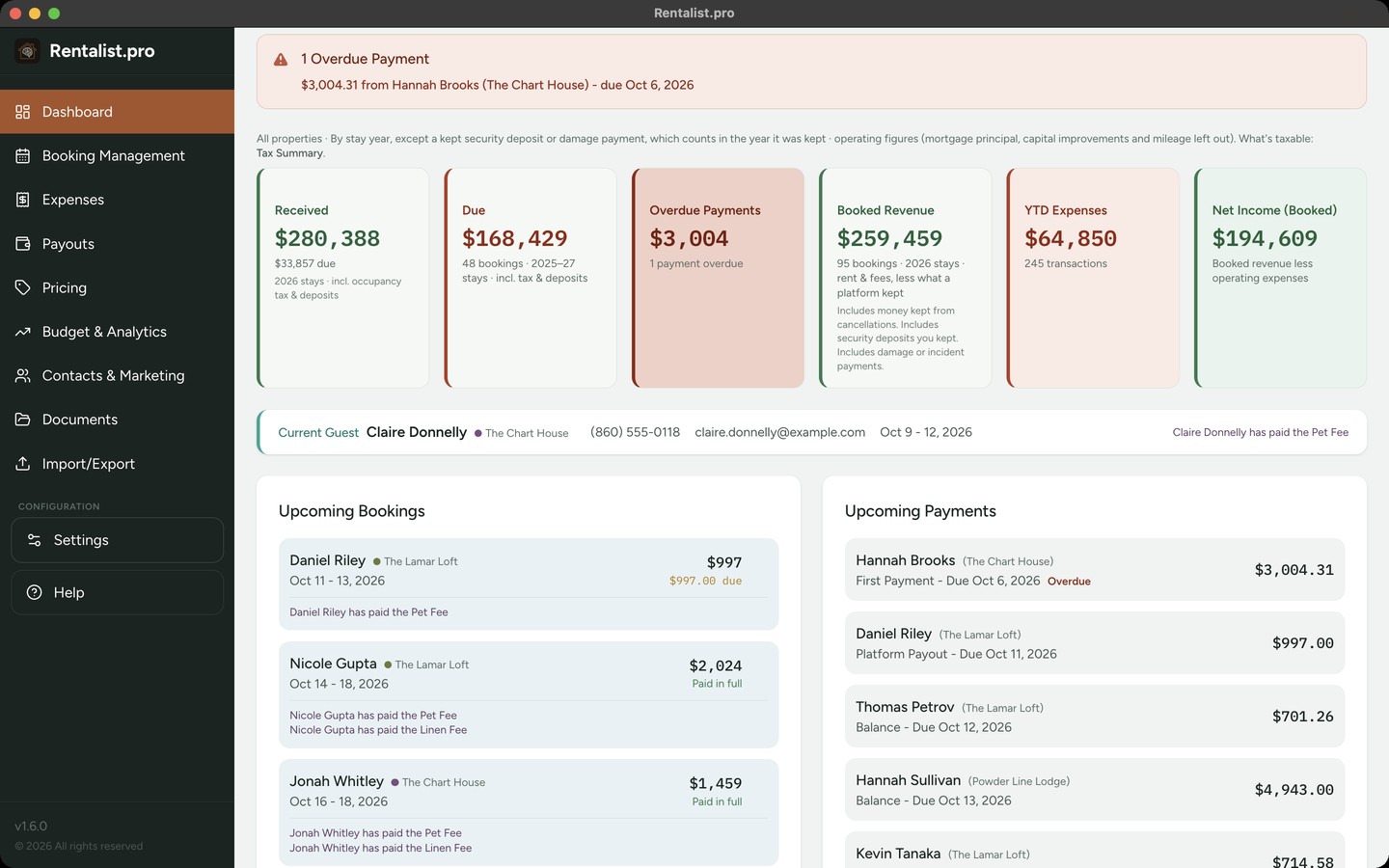
Rentalist.pro supports up to 3 active properties. Each property has its own bookings, expenses, pricing, budget, and settings. Some screens also offer an "All Properties" combined view so you can see your full portfolio at a glance; others work one property at a time.
Go to Settings and open the + Property tab to add a new property (up to 3 total). When adding a property, you can:
- Start fresh: Enter all settings from scratch.
- Clone from an existing property: Copy fee structures, tax settings, payment schedules, seasons, and other configuration from a property you've already set up. This saves time when your properties have similar settings.
Once you have more than one property, a property bar appears at the top of most screens, Booking Management, Expenses, Contacts & Marketing, Documents, Pricing, Budget & Analytics, and Payouts. Click a property name to switch to it. Booking Management, Expenses, Contacts & Marketing, and Budget & Analytics also offer an "All Properties" option that shows combined data; Documents, Pricing, Payouts, and the Budget Setup tab work one property at a time. Settings has its own property switcher too, labeled "Editing settings for" rather than shown as a property bar, with no "All Properties" option. It only lets you choose which property's settings you are editing. The Dashboard, Import/Export, and Help screens have neither. The property you select stays active as you navigate between screens. If you're looking at expenses for "Beach House," clicking over to Bookings will also show "Beach House" bookings.
- Dashboard: Has no property selector of its own. Its summary figures always combine every property, whatever is selected on another screen. Its alerts cover every property too: each one names the property it's about when a single property is affected, and says so when more than one is.
- Bookings: When creating a new booking, you select which property it belongs to. Once a booking is saved, its property cannot be changed. Bookings are filtered by the selected property in the property bar, or you can view all bookings across properties.
- Expenses: Each expense needs a property assignment: Single Property (the full amount belongs to one property, select which one) or Split Evenly (the amount is divided equally across all your active properties, use this for shared costs like an accountant fee or a joint insurance policy).
- Budget Setup: Budget Setup is always per-property. Set up a separate budget for each property. There is no combined "All Properties" budget, each property's finances are planned independently.
- Budget vs. Actuals, Tax Summary, Analytics: These follow the property bar: one property, or "All Properties" for the combined picture. In All Properties, Budget vs. Actuals adds the houses together with a row you can expand for each, and Tax Summary gives every property its own column, so you can see the breakdowns side by side.
- Pricing: All pricing is per-property. Use the property bar to switch between properties. Each property has its own Calendar rates, Plan Next Year settings, Platform Pricing overrides, and Entry Guide.
- Contacts & Marketing: Each contact shows which properties they've stayed at, so you can see cross-property guests. Inquiries can be filtered by property. Mailing lists can be filtered by property. They start on the property picked in the property bar, and you can tick others to widen the list.
- Import/Export: When importing, you select which property the data belongs to. For multi-sheet workbooks, you can assign different sheets to different properties. You can also create a new property during import if needed.
Adding a second property doesn't mean configuring everything twice. Start it from an existing property and its fees, taxes, payment schedule, platforms, and seasons come across as your starting values.
What belongs to that house alone is not copied: its permits and renewals, its mortgage, and the "Cash on hand" and "Warn me below" amounts on its Cash Flow Forecast.
It's a copy, not a tether. The new property is fully independent from that moment on, change either one and the other is untouched. That matters most where it's easiest to get burned: two properties in different towns can carry different occupancy tax rates, with no chance that editing one changes the other.
- Financial Excel export: Includes a tab for each property plus a Combined Totals tab so you can see everything in one workbook.
- Pricing exports: Export rates for whichever property is currently selected in the property bar.
- Mailing list exports: The export reflects your current filters. Set your property and other filters before generating and exporting the list.
In Settings, you can archive a property you're no longer renting (the data stays, the property drops out of active views) or delete it outright. Archived properties still count toward the limit of three.
To free up a slot, the order matters. Delete Property only acts on the property you currently have selected, so an archived one has to come back first: open Settings → + Property, expand Archived Properties and click Restore. Then choose it under "Editing settings for" at the top of the screen, open the Property tab, and click Delete Property. If all three slots are already full, you'll need to archive one of the active properties before Restore will let you bring the archived one back.
- Import historical data first. Before entering current-year bookings, get past years imported. Even two or three years transforms Analytics from colorful charts into actual insight.
- Enter bookings completely. Guest info, all fees, tax, deposit, payments. More work upfront, but Dashboard, Analytics, and tax summaries are all accurate.
- Categorize expenses as you enter them. Takes seconds now, saves hours at tax time.
- Check Budget vs. Actuals monthly. Surprises are easier to handle early.
- Keep inquiries, including lost ones. Conversion rate is useful, but only if you're tracking who didn't book.
- Use the Operating P&L view on the Overview tab. Cash flow shows what happened to your bank account. Operating P&L shows whether the rental business is profitable, which matters for long-term decisions.
- Set up your primary property first, then copy from it. Get one property fully configured before adding the second, the new one starts with a copy of those settings and saves you the setup, then goes its own way.
- Use "All Properties" view in Budget & Analytics. It shows your combined portfolio performance so you can see the big picture alongside per-property details.