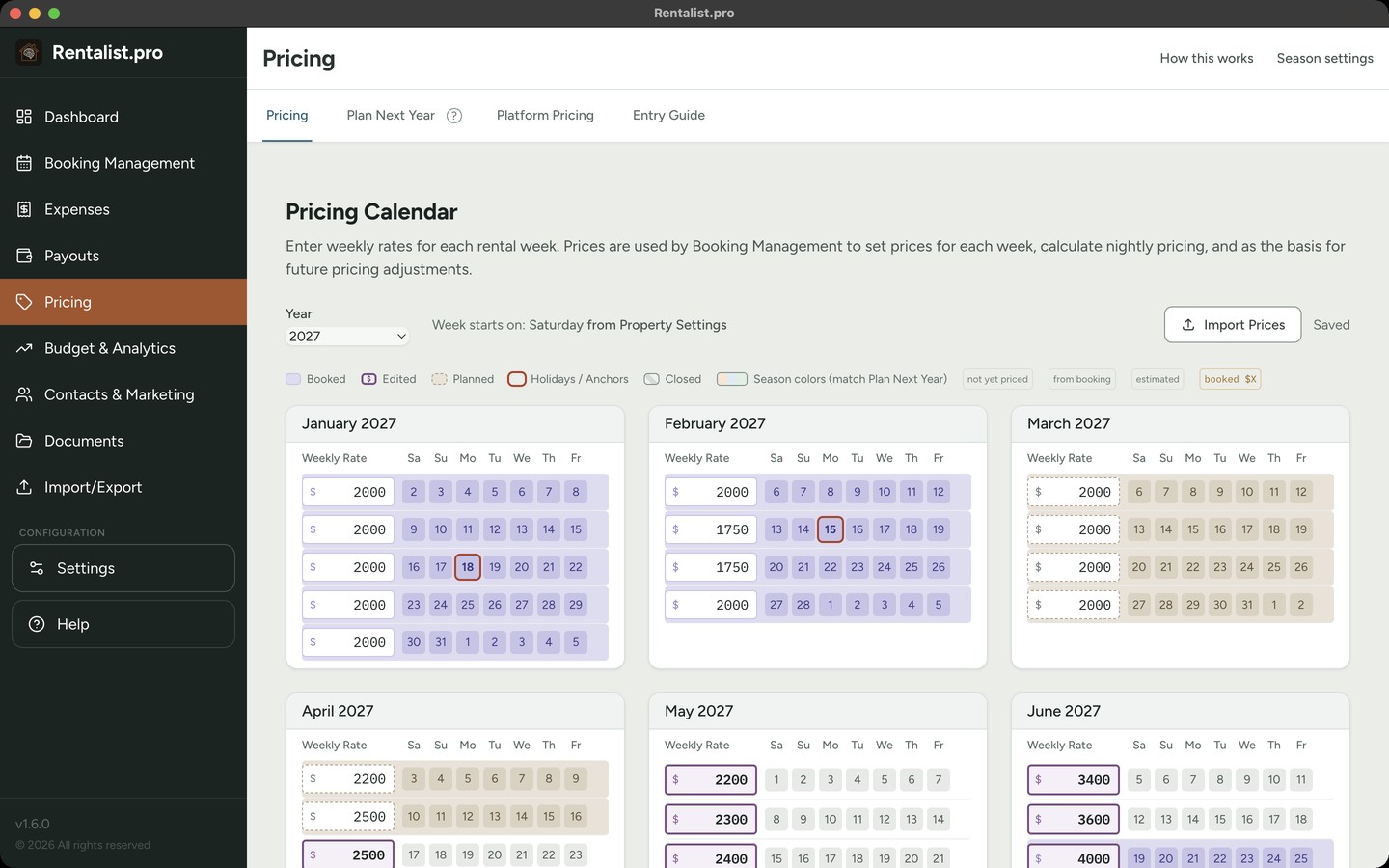
The calendar on the Pricing tab is your single source of truth for weekly rates. Rates entered here flow to Platform Pricing and Entry Guide automatically.
- Enter rates week by week: Click on any week to type in your rate. Use the year selector at the top to switch between years.
- Booked weeks: Weeks with a confirmed booking are shaded and show the guest's name on hover. The price box is still yours to set. If the stay was booked below your price, the booked rate is shown under the box. A booked week with no price at all is filled in from the stay's weekly rent, marked "from booking", edit it like any other week.
- Not yet priced: A blank week, or one you have set to 0, reads "not yet priced" here and everywhere the app shows a price. It is not counted as priced, and Plan Next Year proposes nothing for its next-year twin until you price it.
- Planned and Edited labels: If you used Plan Next Year to generate rates, those weeks show "Planned." If you then manually adjust a planned rate, it shows "Edited." This helps you see where each price came from.
The Calendar auto-saves your changes. You don't need to click a save button, just enter your rates and move on.
Next year's rate sheet, built from this year's in about ten minutes instead of an evening with a spreadsheet:
- Start from what you charged this year: your real rates, not a template.
- Adjust by season: raise peak by a percentage, trim the shoulder, hold the off-season flat. You set the number for each season.
- Rounding: "Round proposed prices to the nearest" sets the step every proposed price lands on: $10, $25, $50, $100, or any whole dollar amount you type in the Other box. Type 1 there to keep the exact dollar.
- It saves as you go: there's no Save button to forget. Set a percentage and next year's Calendar is updated; fine-tune any individual week afterward.
- Holidays land where they belong: anchor weeks make sure your Memorial Day price maps to next year's Memorial Day, not to whatever week that date falls in.
Rates the planner generates are marked "Planned" and refresh whenever you reopen Plan Next Year or change a season percentage. Type over a Planned rate, or over one the Calendar filled in from a booking, and that week becomes "Edited" and is protected: automatic updates won't overwrite it. A price you type into a week that had none is not marked Edited, and the planner can refresh it. And if the year you're copying from is only half priced, Rentalist tells you which weeks are missing before it builds anything on top of them. Less than half the season priced shows "This season isn't priced out yet," with the choice to fill in prices first or plan anyway. A source year with nothing priced at all gets a separate warning. This warning appears even if you've dismissed the similar Dashboard reminder.
Holidays move around the calendar from year to year. Anchor weeks ensure that your Memorial Day pricing maps to Memorial Day next year, not to whatever week "May 25" falls on. You configure anchors in Settings, and Plan Next Year uses them automatically when building next year's rates.
Easter can be an anchor too, off by default since not every season starts that early. The same holiday awareness feeds the open-week alerts, so "the week before Labor Day" is always compared with the right week in past years.
When a holiday falls in a different week next year, its week has two possible prices: the holiday's own week this year, and the week in the same calendar spot. Plan Next Year shows both on that row with one already chosen, and you can click the other to swap. Settings → Seasons, in the Anchors section, sets which one is chosen for you: the holiday's own week, the higher of the two prices, the week in the same calendar spot, whichever of the two falls later in the year, or their average. The next-year week the holiday moved away from is estimated from its neighbors and marked "estimated" until you set it.
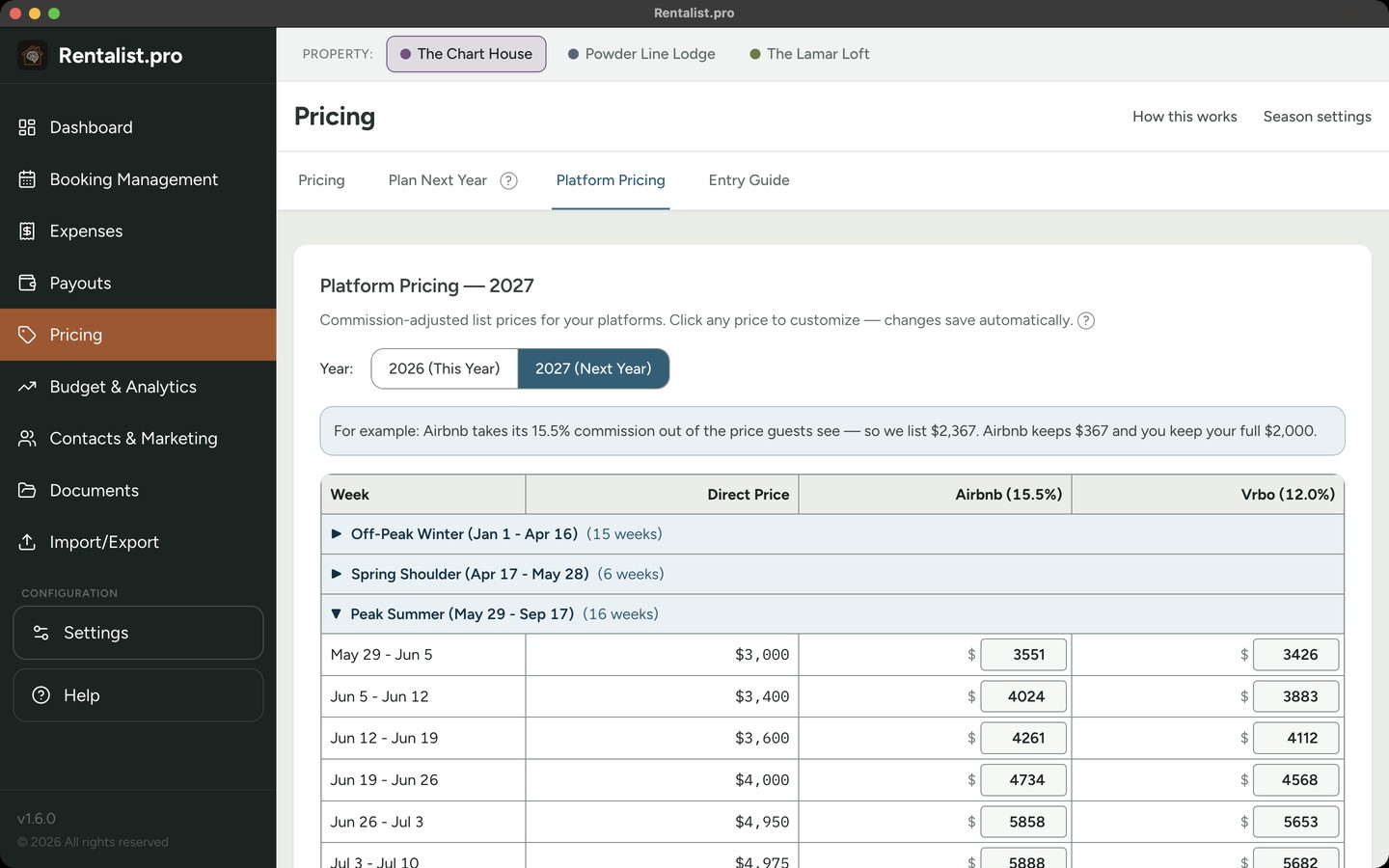
You set one weekly rate in the Calendar, that's what you want to net. Each booking platform takes a different commission. Airbnb's host-only fee is typically 15.5%, Vrbo's pay-per-booking fee is 12% for stays from October 29, 2026 (8% before then), and Booking.com's depends on your agreement with Booking.com, so you enter it yourself. This tab shows you exactly what to list on each platform so that after their commission, you net your target amount.
- Reads from the calendar: Base rates come from whatever you entered on the Pricing tab.
- Commission-adjusted list prices: For each platform with a commission rate, the app calculates the higher price you need to list so you net your Calendar rate after the platform takes its cut.
- This Year or Next Year: A year toggle at the top lets you view and edit platform-adjusted prices for the current year or next year. Each year keeps its own overrides. (The Entry Guide always works from next year's rates.)
- Override per week: If you want to list a specific price on a specific platform for a particular week (maybe a promotional rate), you can override the calculated price. Your override is saved and persists.
- Only commissioned platforms: Platforms with no commission (like direct bookings) don't need adjusted prices, so they don't appear here. Your Calendar rate is your direct booking rate.
- Booking.com: Its prices appear here once you enter your Booking.com commission rate on Settings → Platforms. Until then, this tab shows where to enter it.
Once you've set your rates in the Calendar and reviewed the platform-adjusted prices, the Entry Guide helps you enter those rates on each platform. This is a manual process, you'll log into each platform and type in the rates yourself.
Why manual entry?
Channel management software can push rates to platforms automatically, but those services are priced for managers with large numbers of properties. For 1-3 rentals, entering next year's rates is typically about an hour of work per platform, much more cost-effective than a monthly subscription. The Entry Guide and Excel exports are designed to make that hour as painless as possible.
Two views
- Table View: A checklist format with progress checkboxes. Work through each platform week by week, checking off as you go. Your progress is saved if you need to step away and come back.
- Instructions View: Groups consecutive weeks at the same price into ranges (e.g., "Weeks of Jun 7 through Jul 5: $3,200/week") with platform-specific step-by-step directions so you can enter them more efficiently.
Either view has a "Use average nightly rate" box that shows one flat nightly price for every night of a range instead of the full day-by-day breakdown: the same weekly total, far less typing. Weeks in a weekly-only season group the same way, so four identically priced weeks in a row are one line, not four.
Weekly-only seasons: When a platform only accepts nightly prices, every night is set to the same amount (your weekly price ÷ 7, rounded down to whole dollars), so the weekly total may land a few dollars under your target, simpler for guests and for you.
Download your rates as formatted Excel spreadsheets to follow along with while entering rates on each platform. The exports are formatted to match each platform's calendar layout, making it easier to visually match what you see on screen. The workbook includes a Direct Prices tab plus calendar-style and instruction tabs for each platform you've enabled, Airbnb, Vrbo, Booking.com, or any custom platform.
Alongside each enabled platform's tabs, the export always includes a Direct as Calendar tab, your direct (no-commission) weekly rates laid out as a month grid for matching against any direct-booking site's own rate calendar, and an Average Nightly tab per platform with the same flat-rate-per-night instructions as the checkbox above. Until you enter your Booking.com commission rate on Settings → Platforms, its tab and its part of the exports show where to enter it.
Excel files open with formatting intact in Google Sheets and other spreadsheet software. If you manage multiple properties, pricing is per-property, use the property bar at the top to switch between properties.