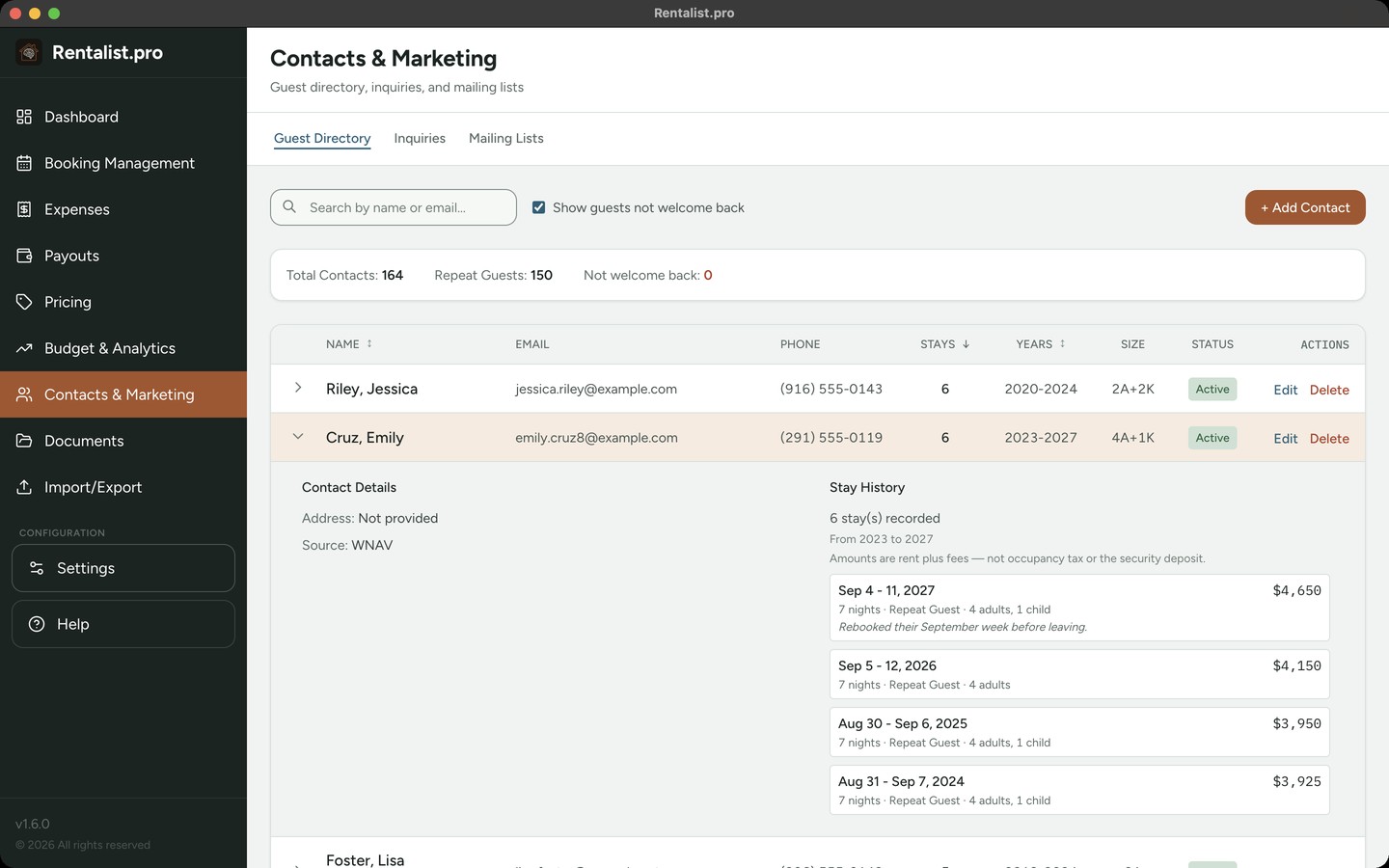
Every guest who books creates a contact record. The Guest Directory centralizes guest information:
- Contact details
- Booking history (number of stays, dates, total revenue)
- Party size patterns
- Pet fee history
- Notes
Guest contacts are automatically synced from your booking records. When you save a booking, the guest's contact information is added or updated in the Guest Directory. A guest marked Unsubscribed, or flagged as not welcome back, is kept off every mailing list you build, and out of the CSV and v-card exports.
Each guest's contact is filled in from their most recent stay, with any blanks filled from their other stays. When you enter new details for a guest on one of their bookings or on the contact itself, the contact keeps them until you change them again or record a newer stay for that guest.
Expand a guest and you get their stays one by one: the dates, what each one brought in, the nights, the source, the party, and any note you left on the booking. Click a stay's dates to open that booking in Booking Management. Cancelled stays are listed too, marked Cancelled. They're never counted as a stay and they show no booked figure; instead the row states what actually changed hands, for example "Settlement: kept $500.00 · refunded $2,300.00," taken straight from the booking's own record. If occupancy tax was withheld from the money you kept, the row says so. A cancellation where nothing changed hands shows no settlement line at all.
Track everyone who asked about your property, even if they didn't book:
- Inquiry date and contact info
- Party details: adults, kids, and whether they're traveling with a pet
- The dates they're interested in
- Source: picked from the same list as a booking's source, which means your platforms, Direct, Repeat Guest, and the rest
- Status: New, Responded, Converted, Lost, or Expired
- Lost reason, chosen from a list you control in Settings (add your own, reorder it, trim what you don't use)
Logging one takes seconds. Paste in the platform's email and the form fills itself with the name, contact details, party size, pet, and dates. Or skip the pasting entirely and let Rentalist read them from your inbox (see Inquiries from Email). Inquiries that age out mark themselves Expired, so your list stays tidy without any housekeeping. Expired appears on its own for an inquiry whose dates have passed, or one that gave no usable dates and has sat unanswered too long; you don't set it yourself. You can also drag a saved email file (.eml) onto the paste box instead of pasting. Anything you've already typed always wins and is never overwritten.
Converted only means a real booking exists and is linked to that inquiry; the app never guesses this from a matching name. A Converted inquiry names the booking it became, and you can click that line to open the booking. When you create a booking for someone whose email matches an existing inquiry, that inquiry is automatically marked Converted and linked to the booking.
Do not contact. Open an existing inquiry and check Do not contact to ask Rentalist to stop emailing that person, without deleting anything about the inquiry itself. It keeps them off every mailing list you build, and it works the same way as checking Unsubscribed from mailings on someone's guest record. Marking an inquiry Lost is different: it only means they didn't book this time, and doesn't stop you contacting them.
Why track lost inquiries? Your conversion rate (inquiries that become bookings) is useful information. Lots of inquiries but few bookings tells you something different than few inquiries overall. This also allows you to tell if you're getting the number of inquiries this year that you have in the past and respond accordingly with pricing adjustments.
Conversion rates you can trust. On the Inquiries tab you'll see a checkbox for each recent year under "Complete Inquiry Data." Checking a year tells the app you've logged every inquiry from it, including the ones that never booked. Only checked years get a conversion rate on the Guest Insights tab of Budget & Analytics, because a year missing its lost inquiries would look far better than it really was. For a recent year that isn't checked, Guest Insights shows a reminder to mark it complete.
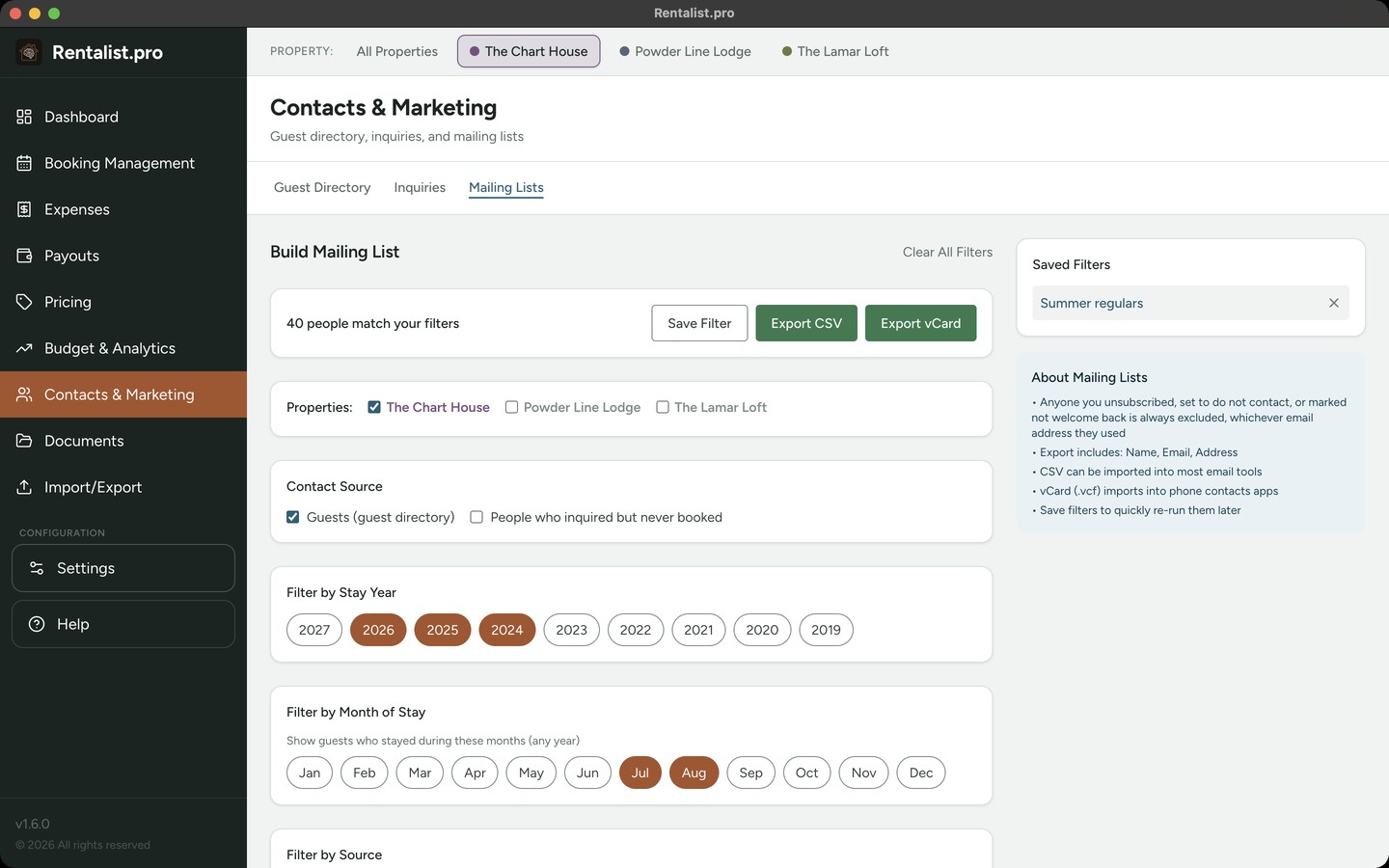
Build filtered lists for marketing:
- Guests who stayed in specific years
- Guests from specific booking sources
- Repeat guests (minimum number of stays)
- Guests with minimum party size
- Guests who paid pet fee
You can draw from two sources, and tick either or both. Guests is everyone in your directory. People who inquired but never booked reads your inquiries directly, anyone who asked and didn't end up with a booking. That includes inquiries marked Lost, since "Lost" means "didn't book this time," not a do-not-contact mark. The year and month filters work on inquiries too: for somebody who only inquired, they match the dates that person asked about, or the month the inquiry came in when those dates can't be read. The party size filter uses the number of people they said were coming. Two filters can't be answered for someone who never stayed, number of stays and pet fee. Set either one and the inquiry-only people drop off the list, and the screen says so.
Export to CSV for your email marketing tool or v-cards for your address book. If you manage multiple properties, see the Managing Multiple Properties section for details on property tags, property filtering for inquiries and mailing lists, and cross-property guest tracking.