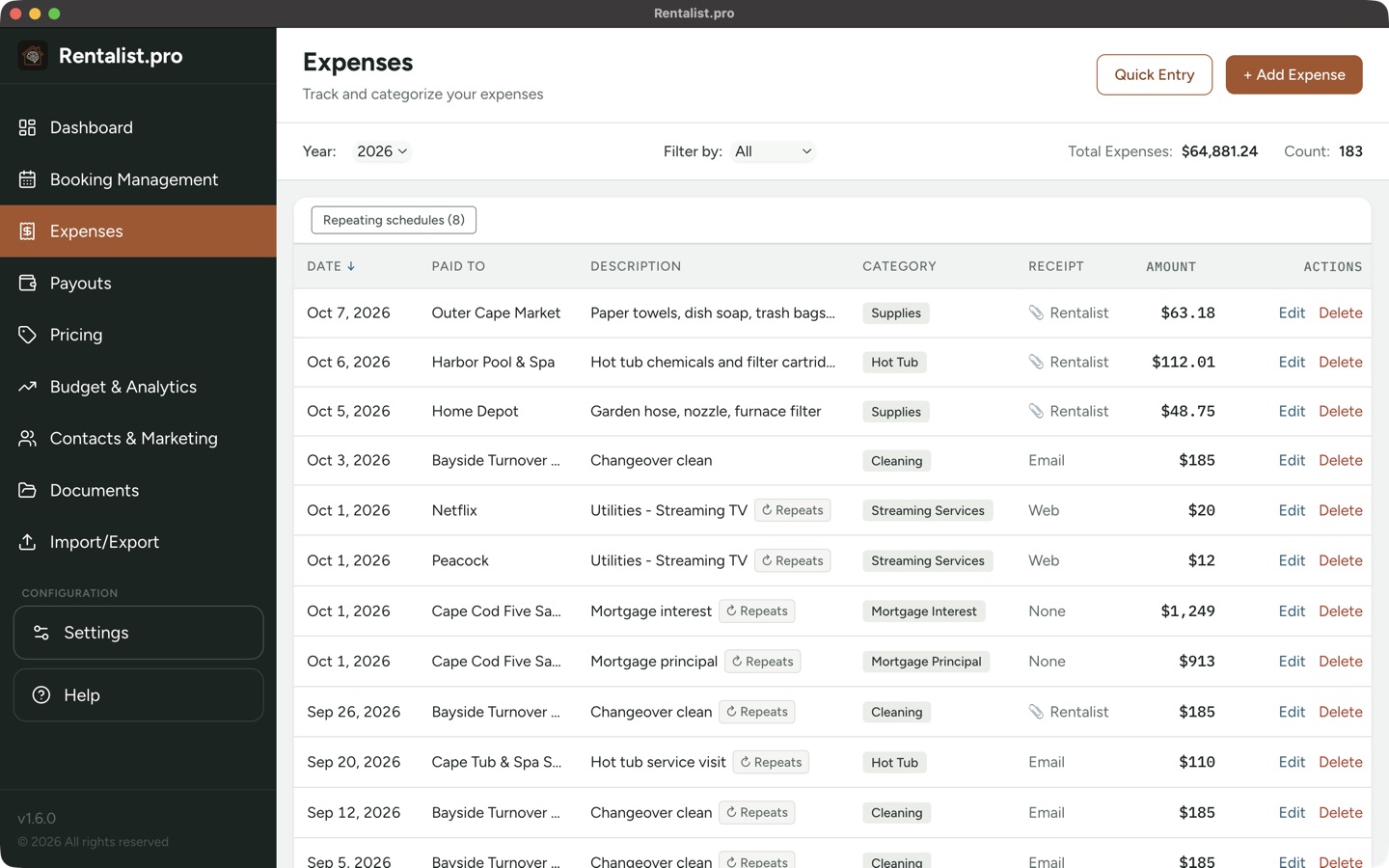
Every cost of running your rental gets logged here, from the mortgage payment to supplies from the hardware store. Each expense is categorized for taxes. At tax time, your year-end summary is already organized the way your accountant needs it. If you manage multiple properties, each expense needs a property assignment. When adding or editing an expense, select which property it belongs to, or choose "Split Evenly" to divide the cost across all your active properties. Make sure you have the correct property selected in the property bar at the top of the screen before viewing your expense list.
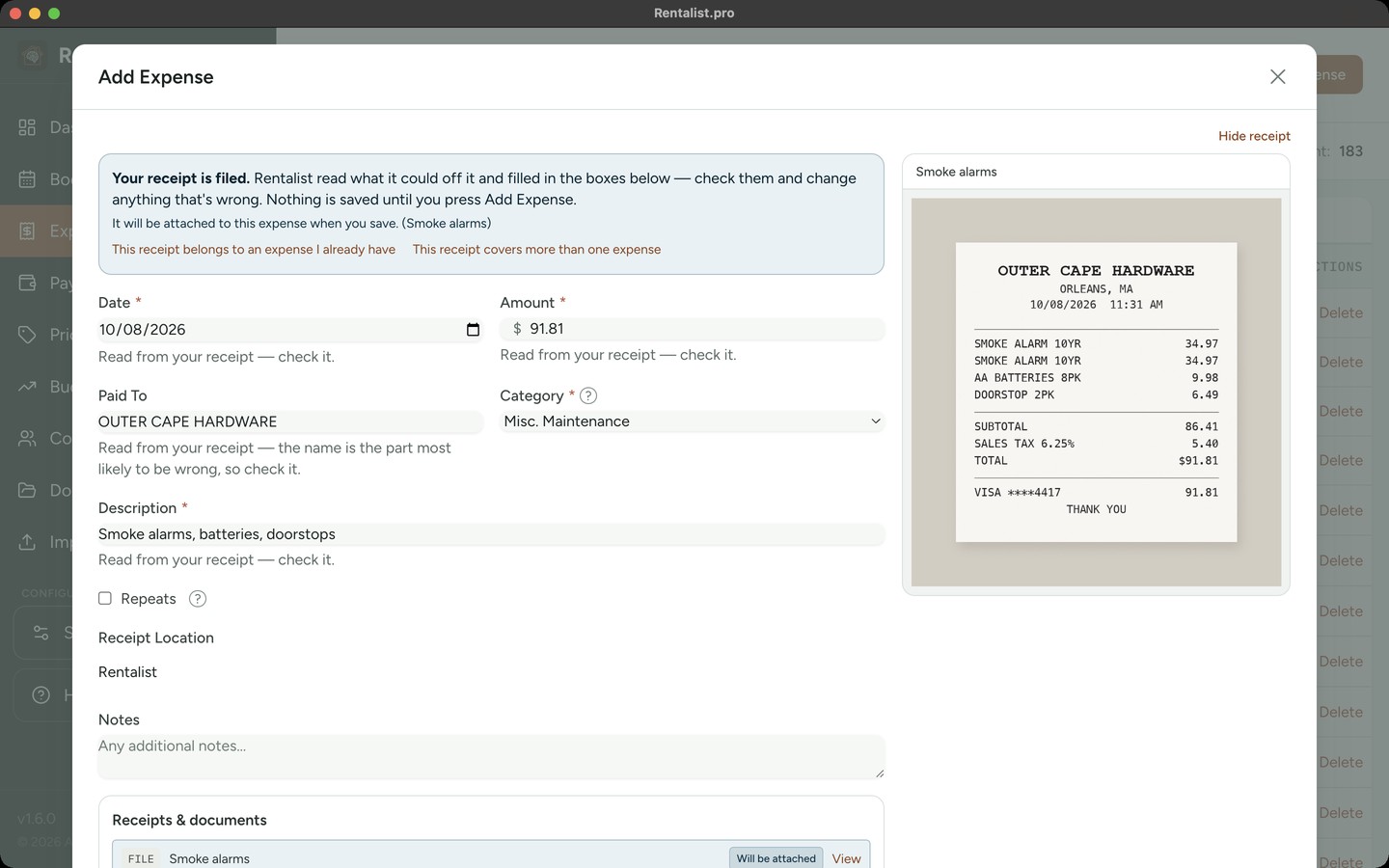
- Date: When was the expense incurred? For credit card purchases, use the purchase date, not the statement date.
- Amount: The total spent. For shared expenses (like a Costco run that includes personal items), enter only the rental property portion.
- Paid To: The vendor or payee. This helps when searching for expenses later ("how much did I spend at Home Depot this year?").
- Category: This is the most important field. The category determines which tax deduction category the expense maps to. Choose carefully, miscategorizing a capital improvement as a repair (or vice versa) affects your taxes.
- Description: What was this for? Useful when the vendor name isn't descriptive (e.g., "Replaced kitchen faucet" for a Home Depot purchase).
- Receipt Location: Where the receipt is: Paper, Email, Web, App, Check, Rentalist, or None. Add your own in Settings if none of those fits. Helpful when your accountant asks for documentation. Attach the receipt itself (see Documents) and this reads Rentalist on its own, so you'll never need to remember. One receipt can be attached to more than one expense.
Some costs come back on a schedule, the mortgage every month, the lawn service every two weeks in summer, the trash hauled away after every stay. Check Repeats on the expense form and pick how this one comes back:
- Monthly: the same bill every month. This is the right choice for a mortgage, insurance, or a streaming service.
- Annually: the same bill once a year, on this expense's own date: property tax, an insurance renewal, the annual septic pumping.
- Every few weeks: a service on a set interval, like cleaning every 2 weeks. You can also pick the months it runs (lawn service every 2 weeks, June through September).
- Certain months of the year: a bill you only pay in some months. Tap the months it applies to.
- At turnovers: for a cost that follows your guests rather than the calendar: the cleaner, the linen service. One entry per checkout, cancelled stays excluded, for one property (two houses turning over the same Saturday are two cleans, so it isn't offered on an expense split across properties). Picking it asks two things: when does the money actually move, at each checkout or once a month on a day you choose, and should Rentalist record it or remind you to? It starts on remind me: nothing goes into your expenses, your Dashboard tells you how many turnovers are waiting and what they come to at your rate, and one click opens an expense form filled in for you to check and save. On record it automatically, the entry goes straight into your expenses. It starts on the day you set it up; a checkout that already happened before then is never billed.
Enter the expense once, with its amount. On the four calendar schedules, and on a turnover schedule set to record automatically, Rentalist fills in the rest, and each entry shows up in your expense list on its own date. Because every entry lands on a real date, those schedules are also what the Cash Flow Forecast uses to show your season's spending before it arrives. A repeating expense carries on into next year and the year after until you stop it; if you know when it ends, set Stop repeating after to that date. Two shortcuts sit next to it: End at year's end sets that date to December 31 of the year this expense belongs to, and End as of today stops it here and now.
Two kinds of row. Every repeating expense has its own row in the list, gray, with no date and no amount: that's the schedule itself, sitting beside whatever bills it has made. The gray row is never counted in your total, a chart or an export. To change the rule going forward (its amount, category, payee, how it's split between properties, how often it comes back, which months it runs, or when it ends), open the gray row. Every entry already on your books keeps exactly what it was recorded with. To correct one bill, open that bill; when what changed is the category, who it's paid to, or the mileage, and the schedule is still running, Rentalist asks "Use this from the next one on?" You can choose to carry the change forward or keep it to just that bill.
Replaced, Ended and Restart. If you replace a schedule that still had a bill ahead of it, its old version may still show in the list, labeled Replaced. A schedule you simply stop is labeled Ended, and its Restart button starts it again from its next date. Nothing is added for the months it sat stopped.
Deleting. Deleting an entry in a repeating schedule asks which you meant: Delete This Instance Only removes that one month and leaves the schedule running, or Delete & End Recurrence removes it and stops the schedule. Deleting the gray row asks "Stop this repeating expense?" Everything it has already added stays on your books exactly as it is. If you see the same bill twice because you once typed a month in by hand, delete the one you didn't type; the schedule remembers and won't put that month back.
Variable amounts: For bills that vary month-to-month (like electricity), enter an average and adjust individual entries later, or enter each bill separately as you receive it.
Reminders are for repeating expenses. Check Remind me about this bill under Repeats and choose On the billing day, or a number of days ahead. A reminder then appears on your Dashboard before every future bill, on its own, nothing to reset each time.
A one-off expense has no reminder to set, but one that already carries a "Remind me on" date keeps it: the reminder fires on that day and stays on the Dashboard until you move or clear the date. Reminders aren't offered on an At turnovers schedule, which already asks its own remind-or-record question.
Either kind can be snoozed for a week from the Dashboard; there is no permanent Ignore. A reminder never creates an expense, never spends anything, and never moves a date on its own. It is a note to yourself. An expense carrying a reminder shows a small Reminder tag in your expense list.
When you've got a stack of receipts to get through, Quick Entry, the button beside "+ Add Expense," is faster than the full form. It's a typing grid with six columns: date, amount, category, paid to, description and notes. Only the date and the amount are required. Nothing is written while you type. You get a review step showing every expense as it will be saved, and nothing is saved until you confirm there. Rows are written one at a time: if one fails, the rest still go in and the failed row stays in the grid with the reason on it.
- Dates have to say their year. A date with no year is refused, never guessed.
- An amount of zero is refused: use a positive amount for a cost and a negative one for a refund.
- If your batch reaches into a closed year that already holds records, one dialog names every such year and asks before writing. Those years re-lock the moment the entries are in.
- Everything typed goes to the property selected at the top of the screen. On "All Properties" the grid doesn't open.
It has no receipt, reminder, repeat schedule, mileage, or splitting one cost between properties; the full form has all of those, and you can open any expense afterwards to add them. Leaving the category blank files the expense under Other Fees. Quick Entry is available on any year.
The app comes with standard expense categories, each already filed under a tax deduction category. You can rename them, add your own, and re-file any of them. Here is what you start with (tax deduction category first, then the categories filed under it):
- Advertising: Advertising
- Auto and travel expenses: Auto, Mileage, Travel
- Cleaning and maintenance: Cleaning, Hot Tub, Landscaping, Misc. Maintenance, Garbage Collection, Pest Control, Snow Removal
- Commissions: Commissions
- Insurance: Insurance
- Legal and other professional fees: Legal/Professional Fees
- Management fees: Management Fees
- Mortgage interest paid to banks: Mortgage Interest
- Repairs: Repairs
- Supplies: Supplies
- Taxes: Property Tax
- Utilities: Utilities, Streaming Services, Cable/Phone/Internet, Gas, Electricity
- Depreciation expense or depletion: Capital Expense
- Other: Other Fees, HOA / Condo Fees, Permits & Licenses, Security / Alarm Monitoring, Software & Subscriptions
- Tracked, not deducted: Mortgage Principal
A commission a platform keeps from your payout is never an expense. Use Commissions for bills you pay yourself (for example, Booking.com billing you for its commission).
Repairs vs. Capital Improvements
This distinction matters for taxes:
- Repair: Fixes something that's broken, Fully deductible this year
- Improvement: Makes something better or adds value, Depreciated over time
- Examples: Replacing a broken dishwasher = repair. Upgrading to a better dishwasher = improvement. Fixing a roof leak = repair. Replacing the entire roof = improvement.
When in doubt, ask your accountant. The app categorizes correctly either way, you just need to choose the right category.
Where capital improvements show up. They are not in Total Deductible Expenses. Because they are written off over several years rather than deducted in one, they get their own labeled block on the Tax Summary screen, in the printed report and in the Excel workbook. The money is stated in full, just not inside a total that says "deductible." Your accountant works out the depreciation.
- Year selector: The dropdown at the top lists the current year plus every past year that has booking or expense data, all the way back to your earliest records. The app stores each year separately.
- Year locking: Past years are locked by default, so a stray click can't rewrite a year you've already filed. Last year stays open through April 15: there is nothing to unlock, and where the lock icon sits you'll see the day it locks (for example, "Open through Apr 15"). On April 16 it locks like any other past year. When you need to fix something, click the lock beside the year selector, or simply start the edit and answer the prompt that appears. The year opens for as long as you're on that screen and re-locks the moment you leave, so you can't wander off and leave your filed history unguarded. Unlocking one year never unlocks another, and importing into a locked year asks the same question. Booking Management works exactly the same way.
- Delete entire year: If you need to re-import a year's expenses from scratch, you can delete all expenses for that year (after unlocking it, last year needs no unlocking through April 15) and start fresh. Repeating schedules, even one set up in the year you just cleared, are never deleted by this, so any schedule still running fills that year's expenses back in.
You can add your own categories in Settings → Expenses. Each one is filed under a tax deduction category you choose, or under "Other" if nothing fits. Use your own categories when you want to track something more specifically, like separating "Pool Service" from "Cleaning," and it still lands in the right place at tax time. Expense categories are shared across all your properties, you don't need to set up categories separately for each one.
Some expenses are tax-deductible but not something you "budget" for, like mileage. In Settings, under Expense Categories, you can exclude specific categories from budget tracking. They'll still appear in your expense list and tax summary, but won't show up in Budget Setup or Budget vs. Actuals. Spending in an excluded category is listed in a "Not budgeted" note under the Budget vs. Actuals table and is left out of the totals there. When your mortgage calculator is in use, Mortgage Interest and Mortgage Principal are always budgeted and cannot be excluded. Excluding a category changes nothing about what you can claim; verify with your accountant. If you manage multiple properties, see the Managing Multiple Properties section for details on how expenses are assigned to properties.