Basic property information, name, address, owner contact details, and week start day. Week start day is set per property, because a Saturday-to-Saturday beach house and a Sunday-changeover ski condo shouldn't have to agree. Backups and restoring from a backup are on their own Backups tab.
The Property tab also has an Open Week Alerts group: an on/off toggle for the open-week pricing alerts (on by default), your Active Rental Season (which weeks those alerts watch), and your typical booking lead, about how many days ahead your bookings usually come in, used until each week builds up its own booking history. A "Remind me to finish pricing my season" checkbox turns the Dashboard's "Pricing is incomplete" alert off or back on for this property.
Email connection. Each property connects its own mailbox. Click Connect an email account, then Test & save connection. Rentalist only reads; nothing in your mailbox is ever changed or deleted. It's optional: without it, you type in inquiries, bookings and receipts yourself, and everything else in the app works the same. Two checkboxes decide what it reads: Read inquiries and reservation emails lines up guest inquiries and platform booking emails for you to review before anything is added, and Look for receipts I email myself shows receipts you photograph and email to yourself on the Documents screen for review. Nothing is filed until you choose to file it.
It's also where you decide how much the app speaks up: which weeks the open-week alerts watch, whether the pricing reminder appears at all, and whether Rentalist reads inquiries, reservation emails, and receipts you email yourself from this property's mailbox (see Inquiries from Email). All per property, all reversible.
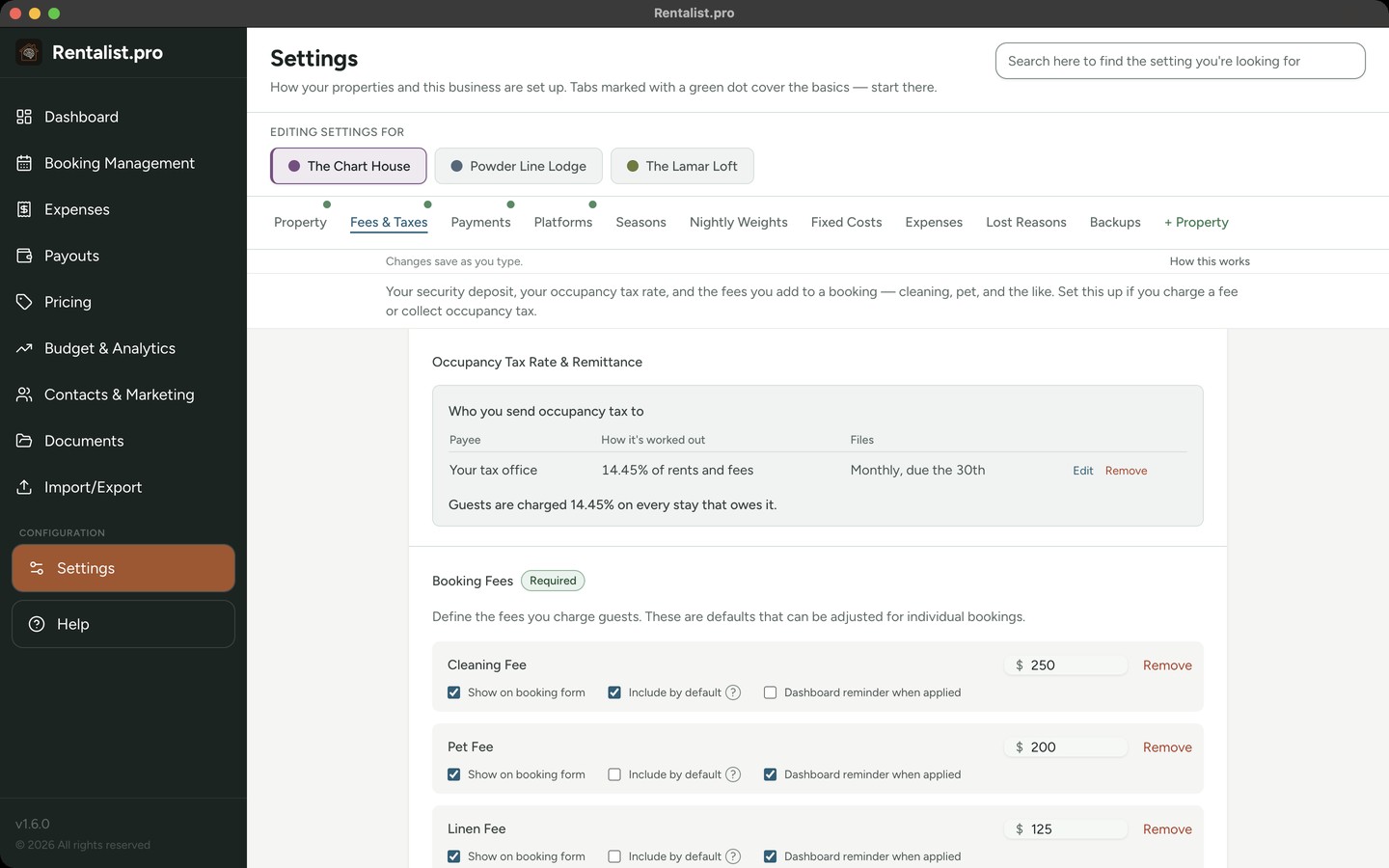
Standard fees (cleaning, pet, linen, custom) and everything about occupancy tax:
- Whether this property is required to pay occupancy tax
- Who you send occupancy tax to: one entry per return you file (a payee), with how each one is worked out (a percentage of rents and fees, a percentage of rents only, a dollar amount per night, or a dollar amount per stay, with more than one charge allowed), how often it is due and on what day, and who sends it in (you, or your property manager)
- Your number with them (optional): the certificate, registration or account number a payee knows you by. It appears at the top of Occupancy Tax Payments with a Copy button. Your permit or license number to operate is a different number, and it lives on Permits & renewals on the Documents screen.
- Tax Calculation Basis: which period a stay's tax counts in (by arrival, departure, spread across the stay, or when the money arrives)
- Whether money you keep from a cancelled booking is taxed, answered for each office you send tax to. Check your state's rules and verify with your accountant.
- Long-Stay Tax Exemption: the number of days after which a stay owes no occupancy tax, or a tick to say the tax always applies
- Enable remittance reminders: a reminder on the Dashboard when a return is due
Start with the yes/no at the top of the tab: Is this property required to pay occupancy tax? Answering No means Rentalist adds no occupancy tax to your stays; if the property was already charging tax, a box asks you to confirm.
A rate with a date on it
Tax rates change, and one stored number would misstate your past. So each charge comes with the date it starts, and Rentalist keeps the history and uses the right rate for the right stay. If you change what an office charges, Rentalist records the tax difference on your affected upcoming bookings the moment you save. "The rate changed" is for a real change: type the new figure and the date it starts. "Fix a typo" is for a figure or a starting date typed wrong. If you hand a payee to your property manager, filing periods that begin on or after the handover date are theirs: Rentalist does not track them or remind you about them, but it still works out the tax on every stay and shows it on your bookings and reports.
Rentalist works out the tax from exactly what you enter for each payee; check the amount, the rule and who files with your own state and local tax offices, and verify with your accountant. Under Long stays, a payee's tax can follow the property's Long-Stay Tax Exemption, never stop, drop entirely on stays longer than a number of nights you set, or charge only the first set number of nights. On Occupancy Tax Payments, the caret beside each period opens "Figures for your return," the receipts you file on and the tax, each with a Copy button. Returns often count days; Rentalist counts nights, so where your return says "stays over 31 days," type that same number as nights.
How you collect payment from guests, number of payments, timing, security deposit handling, and last-minute booking threshold.
Which booking platforms you use, Airbnb, Vrbo, Booking.com, or others you add, such as a regional booking site, and their commission rates. Airbnb, Vrbo and Booking.com are ticked for a new property; untick any you don't use, and use + Add Platform under Other Platforms to add another site. The platforms you tick and add are what the Booking Source list offers you when you add a booking. Every commission rate is yours to change; Booking.com's depends on your agreement with Booking.com, so its box starts blank for you to fill in. Under each platform, tick which of your occupancy tax charges it sends in for you, what is left is what you file, and set its payout timing, such as 1 day after check-in, which dates the payout on each new stay.
Vrbo's fee has two parts, so it gets two boxes. Pay-per-booking is one all-in fee, so the commission box takes the whole percentage Vrbo deducts. Leave it blank and Rentalist uses Vrbo's standard rate for each stay's dates: 12% for stays from October 29, 2026, and 8% for stays before then. On the legacy subscription plan there is no commission at all, so that box stays at 0 and the payment processing fee is what Vrbo keeps. The payment processing fee is yours to set; leave it blank and Rentalist uses Vrbo's published standard rate and marks the box so you know it isn't a number you typed. Airbnb's standard rate is 15.5% on the host-only fee model. Where Vrbo charges its payment processing fee on the occupancy tax it collects (its standard pay-per-booking terms did for stays before October 29, 2026, and do not from then on), tick "Cover Vrbo's payment processing fee on the tax" and the list prices Rentalist suggests are nudged up enough to cover that. It affects the suggested list price only. The tick appears only while a payment processing fee is in force.
Rate history. Commission rates change. The Rate history panel under each platform lets you record a rate and the date it started. Estimates on the Payouts screen and on Occupancy Tax Payments then use the rate that applied when the guest arrived. Dates you haven't recorded use the current rate, so an empty table changes nothing.
Listing-only and direct sites. Listing-only sites advertise your property and send you the inquiry, but the guest pays you directly. Add it under Other Platforms and leave its commission at 0%. Bookings from it work like a direct booking. A flat listing fee isn't a commission, so it doesn't belong in the commission box: record it in Expenses as a bill you paid. If one payout file covers several of your houses, Listings in your payout files on this tab lets you change or forget which house a listing belongs to.
Seasons form a chain across the year, every day belongs to exactly one season, separated by boundaries. A boundary can be a fixed date, the week of a holiday (so it follows the holiday each year), the Nth full week of a month, or an offset from a holiday. A year-wrap option keeps a winter season whole across December–January. Seasons drive Plan Next Year's per-season percentage adjustments and mark weeks that are closed to guests. The app checks your boundaries up to 10 years ahead and warns you (amber) or blocks you (red) if a moving boundary would fall out of order in a future year.
How weekly rates distribute across days. Default weights weekends higher (Friday 22%, Saturday 23%), but you can customize. Used when applying nightly weighting in booking pricing.
On the Seasons tab: holiday and custom anchor weeks for year-over-year pricing mapping. Anchors ensure holidays like Memorial Day map to Memorial Day next year, not a fixed calendar date. You can remove built-in holidays you don't use (removals persist between sessions), and "Reset Anchor Weeks to Defaults" restores them, but note that doing so also removes any custom anchors you've added.
The costs of owning the property rather than the money guests pay you: your mortgage, and the months your property tax and insurance bills usually land in. Enter your loan once, adjustable-rate loans and escrow included, and Rentalist works out the interest and the principal for every month, then keeps them on your books as two repeating expenses once you press Create the monthly mortgage expenses. Interest is deductible and principal is not, which is why they're recorded separately, verify with your accountant.
- What it asks for: an optional lender name, the original loan amount, the interest rate, the length of the loan in years, and the date of the very first payment, even if it was years ago. Skip the loan section if the property has no mortgage. If your rate changes, record each new rate with the date it starts under Rate history.
- Your figure for a month always wins: To correct a single month, open that month from the expense list and change the figure there directly. The calculator never touches it again.
- If you overpay: An extra payment does not lower the balance used for later months. Enter the balance from your lender's statement and its date under "If your balance has drifted," and every month from then on is worked out from it.
- If your payment includes escrow: The calculator covers principal and interest only. Tick what your escrow pays (property tax, insurance, or both) and enter the yearly amount for each from your escrow statement. Rentalist doesn't record the escrow portion as an expense for you; the Cash Flow Forecast uses these amounts so it estimates only the part you pay yourself.
- Check them at tax time: These are calculated figures in whole dollars, so over a year they can differ from your lender by a few dollars. Your lender's Form 1098 is the authoritative figure for mortgage interest. Reports carry a note headed "Mortgage amounts are calculated."
- What it doesn't do: One loan per property. A second mortgage, a home equity line or an interest-only loan isn't something this calculator can work out; record those as ordinary expenses.
Property tax and insurance timing. A second card on this tab asks which months your property tax and insurance bills usually land in, because the Cash Flow Forecast treats them as bills that fall due on particular dates rather than a little every month.
Your expense categories: add custom ones, hide ones you don't use, and exclude categories from budget tracking. Most categories can be moved under a different tax deduction category at any time, and every expense already filed under it moves with it. Rentalist decides where the spending is reported, not whether it's deductible, verify that with your accountant. Analytics sorts your spending into fixed, variable and utilities by the tax category a category is filed under, so a category you add and file under Utilities counts as Utilities. For example, you could separate "Pool Service" from "Cleaning" and it still lands in the right place at tax time. Moving a category to a different tax deduction category moves every expense already filed under it, including past years, and your total deductible expenses stay the same.
Removing a category never touches the expenses filed under it and never changes your old tax reports. The category moves to Hidden Categories, where you can bring it back at any time. Reset to Defaults is the one thing that breaks that: it forgets the hidden list, so a removed category can no longer be brought back, and until you add it again its old expenses show under "Expenses With No Tax Category," outside the total. The app spells this out and asks you to confirm first.
The reasons you can pick when an inquiry doesn't turn into a booking, too expensive, dates unavailable, and so on. It comes seeded with 11 common built-in reasons, the last of which is "Unknown," the catch-all, which is always kept and can't be deleted. You can add your own reasons, reorder the whole list (including the built-ins), and delete any of the others. Deleting a reason asks you to confirm first, naming how many saved inquiries currently use it; confirming rewrites all of them to "Unknown" so they're easy to find and re-tag later. This list is shared across all your properties.
The reasons you choose feed the Top Inquiry Loss Reasons chart on the Guest Insights tab of Budget & Analytics.
Rentalist backs up automatically on a schedule, and you can also make a backup anytime from Settings → Backups. A backup is a single file you can copy anywhere. It carries your bookings, expenses, budgets and settings. It does not carry your documents folder (see Documents), and it never carries your email password or its key.
What happens to old backups. Backups stack up, so Rentalist thins the older ones as they age: every backup from the past week is kept, between one week and one month old one backup per week is kept, and older than a month one per month is kept. Your newest backup is always kept. Files Rentalist didn't write are never touched. The automatic backups made while you work are on their own rotation, and Rentalist keeps the ten most recent of those. To keep every copy instead, untick "Thin out older backups automatically" in Settings → Backups, and check the folder now and then because it will keep growing.
Restoring returns the app to the exact state of that backup. Before it does, the app shows you every category of data that will change. Contacts, inquiries, and saved mailing-list filters can be merged with what you have now; bookings, expenses, budgets, and settings are always restored exactly, not merged. A safety copy of your current data is saved automatically before any restore, so a restore can always be undone.