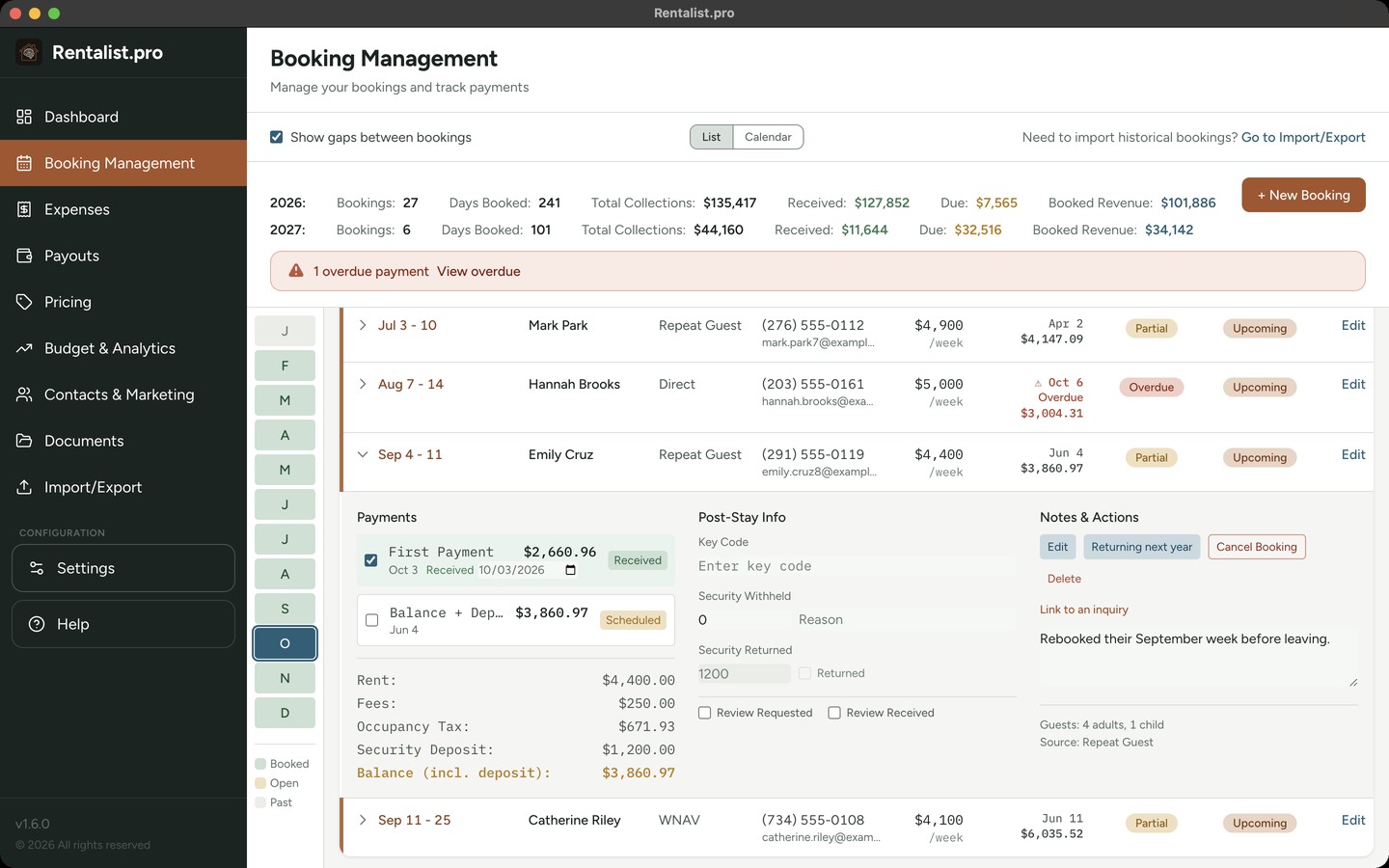
Every dollar of rental income flows through a booking. This is where you record reservations, track payments, and manage the financial lifecycle from deposit to security deposit return. A booking in this app feeds your revenue totals, guest database, payment tracking, and tax reports.
Start with Booking Source: this is at the top because it determines how the rest of the form behaves. The source options come from the platforms you've enabled in Settings.
- Platform sources (Airbnb, Vrbo, Booking.com): The form simplifies dramatically. Since these platforms collect the money and (usually) remit the tax, you only need to enter the estimated payout amount. No fee breakdowns, no payment schedules to set up.
- Direct sources (Repeat Guest, Direct, etc.): You'll see the full pricing form because you're handling payments and taxes yourself.
- Repeat Guest: The Last Name field is always a search box, so you don't have to pick this first: search and select any past guest there and their contact info auto-fills, and if they've stayed with you before, Booking Source auto-fills to "Repeat Guest" too.
- Owner Occupied: For a stay this year or later, occupancy tax is worked out on any rent and fees you record on it, the same as on any other stay; with no rent or fees there is no tax. The nights still count as occupied nights, because the house was in use, but the stay is kept out of the repeat-guest rate and Fill Rate so your own weeks don't read as paying guests. Any rent and fees you record on it still count as revenue. Use this for your personal stays.
Arrival and Departure: The app calculates duration automatically. It displays as weeks for 7+ day stays, or days/nights for shorter stays.
Date Booked: This field often confuses new users. It's asking when the booking was confirmed, not when the guest arrives. Why does this matter? Analytics uses it to calculate "lead time", how far in advance your bookings come in. If you're getting bookings 6 months out, that's different from getting them 2 weeks out. This helps you understand your booking patterns and when to adjust pricing for unsold dates. On a new booking it starts blank. On a new booking not made through a platform it also dates the payment schedule, until you change or receive a payment: an "On Signing" payment is due on the day you enter, and the others follow your payment settings from it. On a direct booking for this year or later, until you enter it the payment dates are placeholders and a note above the payments says so. For historical imports, enter the approximate date if you know it, or leave it blank.
For a platform booking, you just enter the payout. For direct bookings, here's how pricing works:
- Rate auto-fill for multi-week stays: Once both dates are set on a new "Per Week" booking, Rate is suggested from your Pricing Calendar. If the stay spans two or more weeks priced differently, it's blended across every week the stay actually touches so the total comes out correct, and a blue note explains the blend. It's still fully editable, and it never overwrites a rate you've typed in yourself.
- Rate Unit: Choose how you quoted the rental: per night, per week, or per month. If you change this, the rate auto-converts (e.g., $3,500/week becomes $500/night).
- Rate vs. Rent: Rate is what you charge per period. Rent is the total (rate x duration). Both fields are editable, sometimes you negotiate a total that doesn't match the math exactly, and that's fine.
- Apply Nightly Weighting: This appears for stays that aren't exact week multiples. When checked, extra days are priced using your day-of-week weights from Settings. For example, a Friday-Saturday stay costs more than a Monday-Tuesday stay of the same length. Most owners leave this unchecked for simplicity.
- Fees: Your configured fees (cleaning, pet, etc.) appear as checkboxes. They're unchecked by default, check the ones that apply to this booking. The amounts come from your Settings but can be adjusted per booking.
- Occupancy Tax: Worked out automatically from the tax rate in Settings. On a current or future booking the box can't be edited: if the figure needs to change, change the rent and the tax follows. A booking with a past arrival year works differently: if you've recorded what that year's rate was (Settings → Fees & Taxes, with an Effective date in that year), the tax is worked out at that rate. If you haven't, the box is yours to type into. See "Past Years, Old Tax Rates, and Locked Data" below.
- Security Deposit: Your default from Settings, but adjustable per booking. Note: the deposit is tracked separately from "Total to Book" because it's refundable.
- Total to Book: Rent + Fees + Tax. This is the non-refundable revenue from the booking. The security deposit is separate.
Once you have a total and arrival date, the app auto-generates a payment schedule based on your settings. Here's what to know:
- Auto-generation: Payments appear automatically using your default schedule from Settings. Number of payments, percentages, and timing all come from there.
- Fully editable: The auto-generated schedule is just a starting point. Change amounts, dates, or types as needed. Add extra payments. Delete payments.
- Balance adjustment: When you change one payment amount, the final payment auto-adjusts to keep the total correct. This avoids rounding errors.
- Last-minute bookings: If you've configured a last-minute threshold in Settings and this booking falls within it, you'll see a single payment for the full amount.
- Monthly rent for long stays: On a direct booking of two months or more, a box above the payments offers to set up monthly rent payments. Say yes and it asks which day of the month you collect, whether rent is due at the start or the end of each month, whether the first and last month are both due at signing, the security deposit, and whether the tenant pays you back for utilities. It shows you the schedule before it writes anything: one payment a month, a payment of its own for a part month at the end, the security deposit on its own line, and, if you said yes to utilities, a blank Reimbursement line each month to fill in when the bill comes. Say no and the stay keeps your usual schedule. Once written, the payments are yours to change like any others; Rentalist does not rewrite them if you change the stay later, and it shows you a difference if they stop adding up.
- Payment types: "On Signing" means due when the rental agreement is signed. "Balance" and "Balance + Deposit" indicate final payments. "Platform Payout" is the single payment on a platform booking; Rentalist writes it for you. "Additional," "Late Fee" and "Damage" are charges on top of the stay's price: until one is marked Received the guest still owes it, and once it is received it is paid. None of them changes the stay's rent or its occupancy tax.
- Refunds: A "Refund" row you mark received on a direct stay covers the stay's rent, fees and tax: it lowers what the stay is recorded at, including its occupancy tax by the stay's own share. Handing the security deposit back is separate; record that in the booking list's expandable row, under Security Returned. On an Airbnb, Vrbo or other platform stay, a refund you type is a note only: the platform refunds the guest out of the money it holds, and that refund is recorded from its payout file on Payouts.
For Airbnb, Vrbo, Booking.com, or custom platforms that collect payments:
- You only enter the estimated payout: no fee breakdowns needed
- The payout is dated by that platform's payout timing in Settings → Platforms, for example, 1 day after check-in, and you can change the date on the booking itself
- Rentalist fills in the standard commission rates for Airbnb and Vrbo, but every rate is yours to change. Booking.com's depends on your agreement with Booking.com, so its box starts blank for you to fill in on Settings → Platforms. The app never overrides a number you've entered; if your rate differs from the standard one, you may see a note saying so, and that's all
- If the platform remits all of the occupancy tax, the booking is excluded from Occupancy Tax Payments
- If a platform remits none of the tax, or only part of it, you'll see the full pricing form so the tax, or your share of it, can be calculated
The booking form is built for one booking with everything on it. When you've got a season's worth to get in, use Quick Entry instead. It's a typing grid: one row per booking, tab across, no spreadsheet needed. It is for past years: the Quick Entry button is at the top of the screen there, and "+ New Booking" is not offered on a year that's already gone. A brand-new install's welcome window also has a "Type it in" tile that opens Quick Entry on the current year, and the Import/Export screen's "No file? Type it in" card opens it on last year.
The columns are guest name, arrival, departure, source, rent, one column for each fee you've configured, email, deposit and notes. Guest name and the two dates are required; everything else can be left blank, and a blank cell means nothing was recorded, not $0. On a row whose source is a platform that collects the money and remits all of the occupancy tax, the fee and deposit columns aren't recorded, and the figure you type under rent is the payout.
Nothing is written while you type. When you're done you get a review step, "Here is exactly what will be added," showing every booking as it will be saved, with any warnings beside it. Nothing is saved until you confirm there. Rows are then written one at a time: if one fails, the ones that worked stay written and the one that didn't stays in the grid with the reason on it.
- Dates must say their year. 8/8/2026, 2026-08-08 and Aug 8, 2026 all work. A date with no year is refused rather than guessed at, because guessing wrong puts money in the wrong tax year.
- Overlapping stays are a warning, not a block. The review step lists any it finds.
- Past years are asked about once. If your batch reaches into a closed year that already holds records, one dialog names every such year it touches and asks before writing. Those years are locked again the moment the entries are in.
- "These stays were paid." When a batch contains bookings from a past year, the review step offers this tick, which starts off. Turn it on and the payments Rentalist works out for those stays are recorded as received, dated at the end of each stay, so money you collected years ago doesn't sit on Booking Management as still owed.
- One property at a time. Everything typed goes to the property selected at the top of the screen. On "All Properties" the grid doesn't open.
There's no column for phone, address or party size, no receipt, and no payment schedule of your own; the full form has those, and you can open any booking afterwards to add them. Quick Entry also doesn't pre-fill your usual security deposit or tick your default fees the way the form does: what you type is what you get. Expenses has its own Quick Entry grid. See Expenses.
If you've connected your mailbox, reservation emails (a new booking, a change, a cancellation) collect in a review tray at the top of Booking Management, headed "Reservations found in your email." Nothing becomes a booking until you accept it, open it in the booking form first, or dismiss it. A row with no money in the email is marked "Money not found, add the payout" and opens the booking form so you can fill it in. Vrbo always asks you for the money. Changes and cancellations are notices only: nothing is written until you do it. Accepting into a locked past year asks to unlock it first. See Inquiries from Email for the full picture.
When a platform holds the guest's money and sends in all of the occupancy tax for you, Rentalist records the stay at its payout, the amount the platform sends you. Recording the stay adds no commission to it and records no commission expense. When you send in some or all of the occupancy tax yourself, the stay's rent is the guest's price, and its income leaves out the commission the platform kept wherever Rentalist knows it: the figure a payout file lists, or otherwise the difference between the guest's price and the payout you record on the stay.
A commission the platform keeps is never income and never an expense. That money never reaches you, so wherever Rentalist knows the amount it leaves it out of your income, and it never records an expense for it. Vrbo's payout file lists what Vrbo kept; Airbnb's does not, and Booking.com has no payout file Rentalist reads. Vrbo's file states its cut in two columns, a commission and a payment processing fee, and Rentalist reads the two together as what Vrbo kept from the stay.
A commission you pay yourself is an expense. When a platform pays you in full and then bills you for its commission (Booking.com does this when guests pay you directly), add each bill as an expense in the Commissions category.
Your 1099-K. A platform that sends you a 1099-K tax form reports the amount before it took its commission, so that form can show more than your records. The Tax Summary carries a note naming the platforms whose stays this applies to. Ask your tax professional how to account for the difference.
What the payment schedule expects. The scheduled payment on one of these bookings totals the payout on a stay whose platform sends in all of the occupancy tax. Where you send in some or all of it yourself, the schedule is at the guest's price. If the platform's payout file lists its commission, importing it on the Payouts screen checks the payment off as received. Otherwise, set each payment to what the platform actually sent you, and check each one off as the money reaches your bank. Once they're all received, the stay is settled. A platform set to pay long stays monthly on Settings → Platforms expects one payout for each month of a new stay of 28 nights or more.
In the booking list, each booking has an expandable row showing:
- Payment checkboxes: Mark payments as received
- Key Code: Record the lockbox/entry code for this guest
- Security Withheld: If you withheld any deposit amount, record it with a reason. What you keep counts as revenue.
- Security Returned: Auto-calculates (deposit minus withheld)
- Review Requested / Review Received: Two tick boxes, for your own record. Nothing in the app reads them.
- The inquiry it came from: See which inquiry produced this booking, or link one yourself
Finding a guest. The search box above the list looks through every year's bookings, not just the ones on screen. A guest found in a year that isn't on the list is named just under the search, with a button that opens that year. The figures at the top don't change with the search.
On the calendar. Switch the list to Calendar and any day you've recorded as a repair day carries a small plum dot in its corner. It's a marker, not a button; repair days are added and removed on Budget & Analytics → Tax Summary.
Knowing which inquiry became which booking is what turns a conversion rate into a real number instead of a guess. Rentalist connects the two for you: save a booking and the inquiry behind it is matched and marked Converted automatically.
When more than one inquiry could be the right one, it asks rather than guessing, a note on the booking, answered in a click. And you can always link one yourself, which is handy for the platform inquiries that never come with an email address.
A direct booking can carry its own paperwork. Open the booking, one you're editing or one you're creating, and use Add a contract: drop the signed rental agreement in and it's filed in your documents folder alongside everything else. On a booking you haven't saved yet, the file goes in when you create it. Bookings that came through a platform don't have the section; the platform holds that reservation and there's no signed agreement to file. Attach a PDF or a scan of the signed agreement where you can. A Word file works, but a scan is what carries the signatures. When it's filed, Rentalist renames it to match the stay (property, guest's last name, the dates, the year) so the file says what it is without anyone opening it. See Documents if you'd rather it didn't.
The confirmation of record. The first contract you attach to a booking is marked as that booking's confirmation of record, the document you'd hand over if anyone ever asked what was agreed. Attaching a second one doesn't take the marker away; if you want it moved, use "Make this the confirmation of record" on the document you'd rather stand behind. Rentalist never moves it for you.
The one-line status. Open that section and the booking says where its paperwork stands: "Confirmed by email" (the booking came from a platform confirmation Rentalist read), "Contract on file," both, or "No contract on file." The last is a plain statement, not a warning. Plenty of owners work on a handshake and there's nothing to fix.
It works on locked years: attaching a contract to a booking from three years ago needs no unlock. Rentalist doesn't read the contract. It files it and remembers which booking it belongs to, and nothing in the document changes a number. Deleting a booking removes its links to documents; the documents themselves stay in your folder.
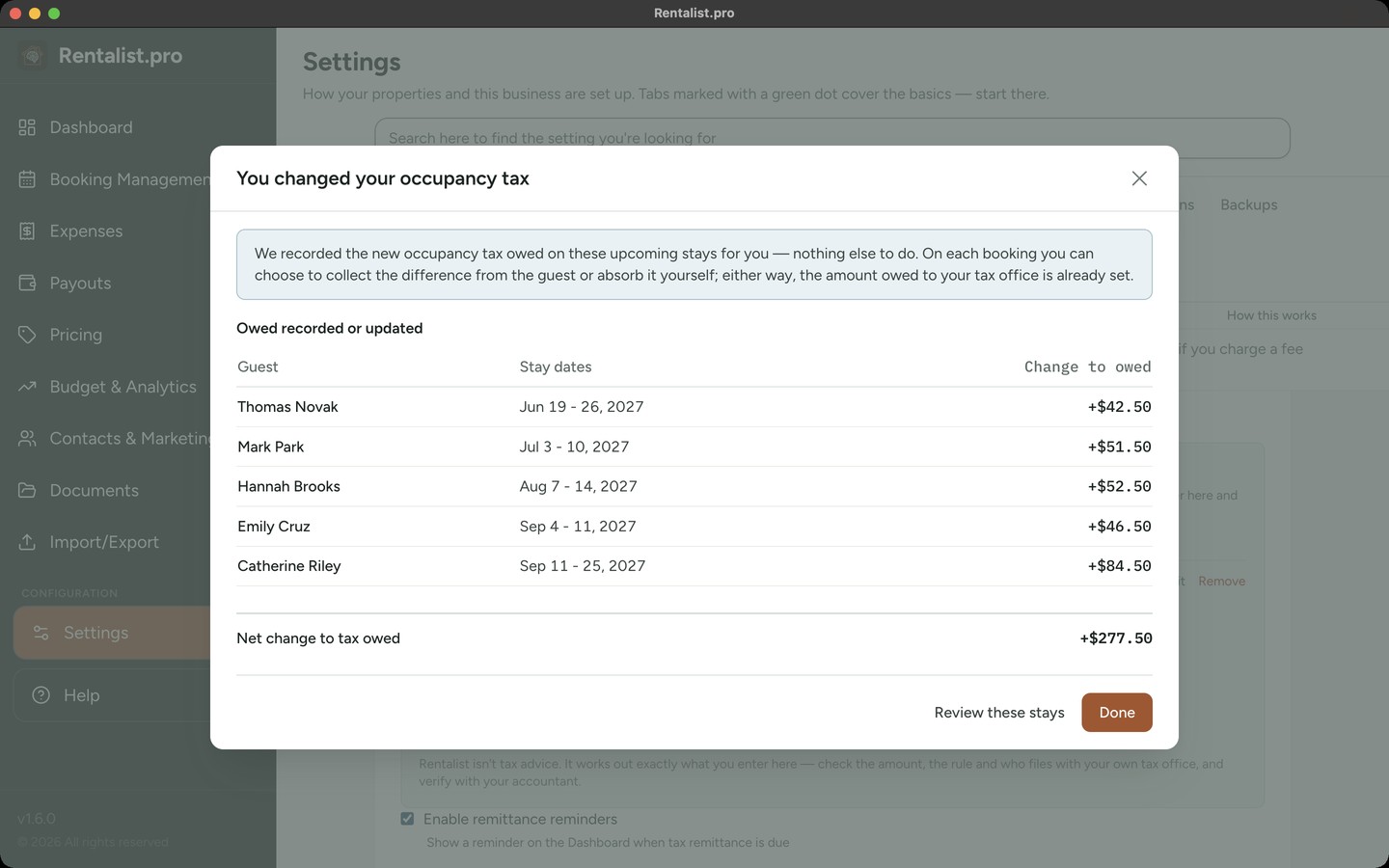
Your town raises the occupancy tax. Every booking already on your calendar was quoted at the old rate, but you'll owe the state the new one. Sorting out which stays are affected, and by how much, is exactly the kind of arithmetic that goes wrong easily.
Rentalist settles it the moment you save the new rate. No "apply" button to remember, no list to work through, it shows you a summary of what it already did, including a stay that runs across New Year's.
The only thing left is a choice, not a chore: collect the difference from the guest or absorb it yourself. Either way what you owe the state is the same, and the reminder disappears as soon as you decide. To decide, click the affected stay's row on Booking Management to open it. Under its figures is a line reading Tax Difference (rate change) with the year it is owed for, and three buttons: Needs a decision (the default), Collect, or Absorb. Collect adds a payment called Occupancy tax difference to the stay's payments, due the same day as the guest's next payment, or today if that day has passed or nothing more is due. To see every stay still waiting, choose Needs a tax decision in the Payment filter. On a stay booked through a platform, or where the difference belongs to a year that is closed, Collect is switched off and the reason is shown beneath it. A rate decrease works the same way in reverse: it records a credit instead of a charge. Which rate a stay owes follows the payee's Tax Calculation Basis: by arrival date, the whole stay owes the amount in force on the day it arrives; by departure date, the amount in force on the day it checks out; spread evenly across the stay, the amount in force each night. Owner-occupied bookings with no occupancy tax on them, bookings on a platform that remits all of its own tax, and bookings long enough to be tax-exempt never get an adjustment.
When a stay came in with no occupancy tax. Some spreadsheets have no occupancy tax column, or leave it blank. Rentalist can't tell how much was collected on a stay like that, so it records what the occupancy tax you file works out to and gives it its own line, "Tax Difference (no tax came in with this stay)," on the stay's row and on the period it falls in on Occupancy Tax Payments. There is nothing to decide. Open the booking and enter the occupancy tax that was actually collected to settle it, and check the figure with your accountant.
A stay from 2021 was taxed at 2021's rate, and nothing justifies restating it at today's rate. So Rentalist leaves old bookings alone: a past-year stay keeps the tax it was actually charged. Tell the app what an earlier year's rate was (Settings → Fees & Taxes, with an Effective date in that year) and it will do that year's math for you again, but it will never invent it. If you haven't recorded that year's rate, the Occupancy Tax box is yours to type into: enter the amount actually collected. A brand-new back-dated booking starts at $0 rather than guessing, and opening and re-saving a past-year booking without changing anything never alters its stored tax, rent or source.
Past years are locked by default to prevent accidental edits to data you've already filed taxes on. Last year stays open through April 15, with nothing to unlock, and on April 16 it locks like any other past year. A small lock icon sits next to the year selector: click it to unlock a year, or click it while unlocked to re-lock it right away. If you try to edit a locked booking directly, an "Unlock" prompt naming the year appears. Confirming unlocks the year only while you stay on that screen; leaving the screen or quitting the app re-locks it, and unlocking one year never unlocks another.
Don't delete cancelled bookings, use the cancellation workflow. You'll record how much you retained per your cancellation policy. On a direct booking that amount is rent and fees only: leave the security deposit out, and enter any of the deposit you keep in Security Withheld under Post-Stay Info on the booking. Money you keep counts as rental income. Payments still scheduled for the stay are marked cancelled. On a stay booked through a platform that holds the money, the platform applies its own cancellation policy; for Airbnb and Vrbo, the Payouts screen compares its payout file with what you record. Where a payee taxes money you keep, the occupancy tax inside it is separated out and shown on its own. If the booking has a signed agreement attached, the cancellation window offers to add _CANCELED to the end of its filename; the box comes ticked, and you can untick it. Reinstating the booking offers to take the mark back off.
Whether money you keep from a cancellation is subject to occupancy tax is answered for each office you send tax to, in its own form on Settings > Fees & Taxes. The form asks "When a guest cancels and you keep some of their money, does this office tax it?" with three answers: No, Yes on whatever you keep, or Yes but only if you keep more than a set percentage of a night's rate, then all of it. It should be set to reflect the law where your property is. Check your state's rules and verify with your accountant. Any refund appears in the booking's payment list as a negative payment, and reinstating a cancelled booking restores its payments.
At the top of the bookings list, a stats bar summarizes key metrics for the selected year:
- Bookings: Number of active (non-cancelled) stays with at least one night in the selected year. A stay that runs over New Year counts in both years.
- Days Booked: Total guest-nights for the selected year
- Total Collections: What you will actually collect on the year's stays: rent + fees + tax + security deposit, less an Airbnb or Vrbo commission (that money never reaches you) and less any refund you have recorded on a direct stay. On an Airbnb, Vrbo or other platform stay, a refund you type is a note only; the platform's refund is recorded from its payout file, on Payouts.
- Booked Revenue: Rent + fees, less any commission a platform kept from your payout where Rentalist knows it, plus money kept from cancelled stays, any security deposit you kept and any damage or incident payment you received, with no tax. This is the figure the Tax Summary starts from, verify with your accountant what you report.
- Received: Payments already marked as received
- Due: What hasn't arrived yet, worked out one booking at a time: what that booking is expected to bring in, minus the payments already marked Received.
Received + Due adds up to Total Collections, with one exception: a booking that has been overpaid counts as nothing owed, so its extra is never used to cancel out another booking's balance. On an Airbnb or Vrbo stay the platform's commission is left out of Due, because that money never reaches you. Stats count the stays with at least one night in the selected year, switch years using the dropdown to see different periods.
For a stay that runs over New Year, its nights, and the rent and fees in its Booked Revenue, count in each year by the nights that fall in it; money received counts in the year it arrived, and money due counts in the year it is due. Money received in a year before the stay began, and money due with no date of its own, counts in the year the stay began. When the list also shows stays in a later year, each of those years gets its own line of the same figures underneath, labeled with its year.
Q: Why can't I edit the tax amount?
A: On a current or future booking the tax is worked out from the rent, so the box is locked, change the rent and the tax follows. On a booking from a past year the box opens up, because today's rate may not be the rate that applied then. If you'd rather Rentalist worked it out for you, record that year's rate in Settings → Fees & Taxes with an Effective date in that year.
Q: The payment schedule regenerated and lost my changes!
A: This happens when the total changes significantly. Payments that are already marked "Received" are preserved, only scheduled payments regenerate. Mark payments received as soon as you get them to protect those records.
Q: What's the "Date Booked" field for?
A: It tracks when the booking was confirmed, not when the guest arrives. Analytics uses this to calculate lead time, helping you understand how far in advance guests book. On a new booking, the payment schedule's "On Signing" payment is also due on that day. If you manage multiple properties, see the Managing Multiple Properties section for details on property assignment and how bookings work across properties.